
Upload a site folder as a ZIP and get your own address
Last updated: 2026-11-11
Short answer: gather your site files in one folder, zip it, upload it on the “Upload a ZIP” screen, choose an address, and press Publish. The index.html at the top becomes the first page, and your CSS, JS, images, and other pages go up with the same folder structure.
At a glance
- Time needed
- About 3 min
- Plan required
- Free plan
- Coding knowledge
- None
- Where to do it
- The upload cards on the home page
Step by step
- 1
Arrange the folder so index.html is at the top
Put index.html at the top of your site folder, with CSS, JS, images, and other pages below it. You can zip it inside a single wrapper folder too: the outer folder is stripped automatically. For a site built with a tool like React or Vite, zip the contents of the build output folder (usually dist or build), not the source folder. HTMLtoSITE doesn't run builds. Leave node_modules out.
my-site.zipindex.htmlabout.htmlcss/style.cssjs/app.jsimages/logo.png - 2
Pick your ZIP on the “Upload a ZIP” screen
If you choose a ZIP on the “Upload a file” card on the home screen, you're taken to the “Upload a ZIP” screen. You can also get there from the “Upload a ZIP” button next to “Already have a site as files?” on the “Create a new site” screen. Choose your ZIP in the “ZIP file” field on that screen. Even if you already picked it on the home screen, pick it once more here.
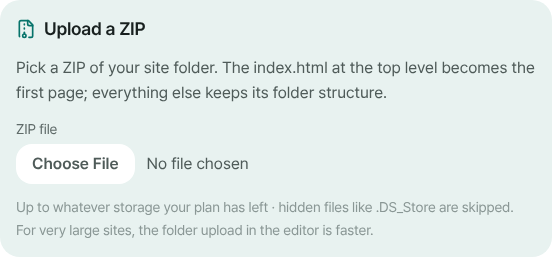
Choose the ZIP in the “ZIP file” field, then set your address below. - 3
Choose an address and press Publish
Type a name in the address field and press Publish: uploading and publishing happen in one go. If it's your first time, a sign-up screen appears (just your email), and when you come back, the address you typed is still there. Only the ZIP needs to be picked again. If any files couldn't be uploaded, the finished screen also shows a “N files could not be uploaded” notice.
myname.html2site.com Liveabout.html opens at myname.html2site.com/about.
- 4
For a site you already made, add files in the editor
In the editor's Files tab, the + button (“Add — new file · upload · ZIP”) offers “Upload files”, “Upload a folder”, and “Upload ZIP”. A ZIP overwrites files at the same paths and leaves files that aren't in the ZIP alone. You can also create a new site from a whole folder with “New site” on your site list, in the “File” tab. Both of these open the editor, so press Publish there to update what visitors see.
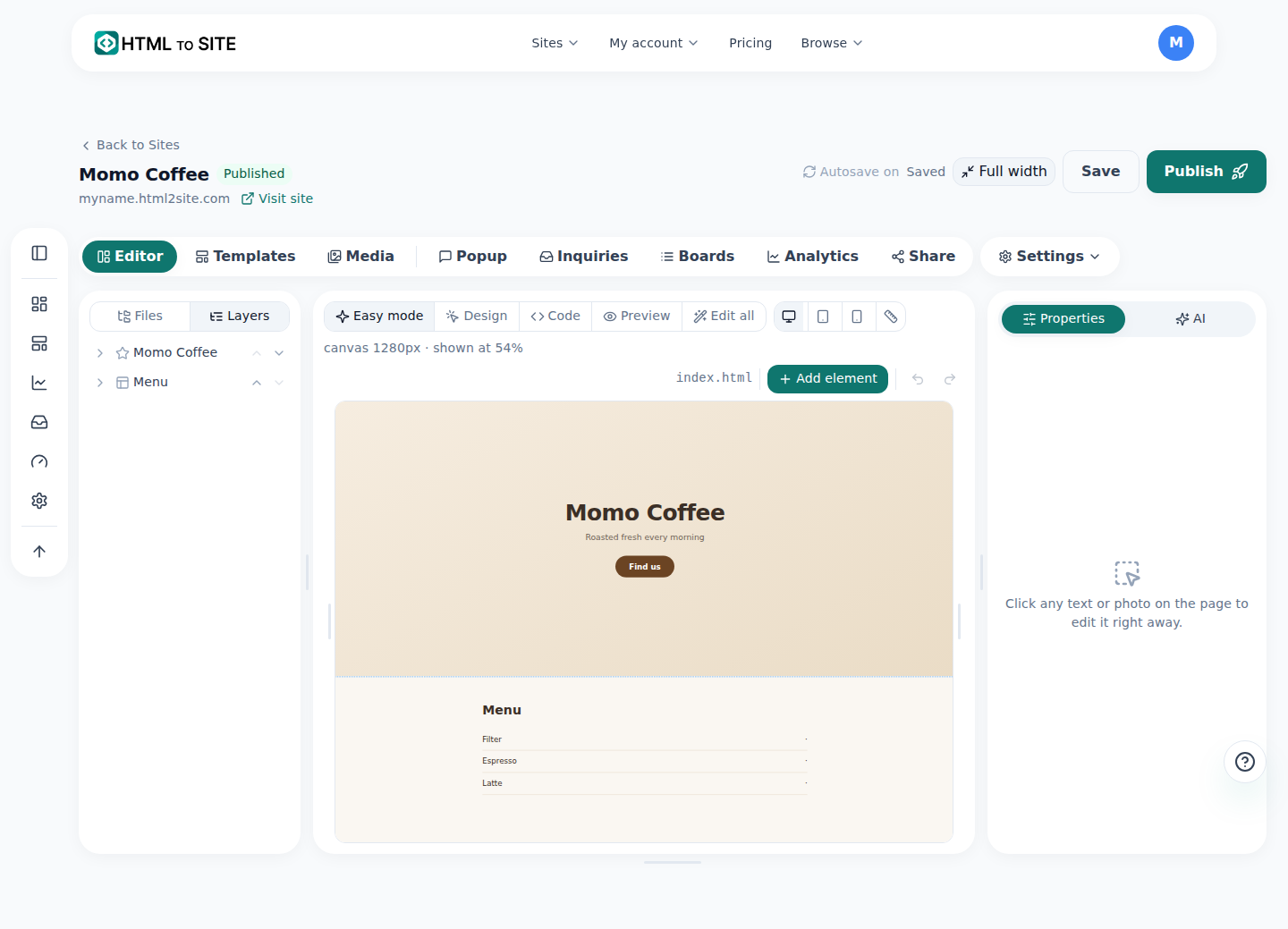
Upload files, a folder, or a ZIP from the + button in the Files tab.
Frequently asked questions
Does my ZIP need an index.html?
Yes, at the top level, so it can become the first page. If your ZIP is wrapped in a single folder, that outer folder is stripped automatically. Without an index.html the files still upload, but no first page can be made, so you'll need to choose one in the editor.
Can I upload a site built with React or Vite?
Yes, as long as it's the built output. HTMLtoSITE doesn't run builds, so zip the contents of the build output folder (usually dist or build), not the source. If it looks like an app that handles addresses inside the page, “Open the main page for unknown addresses” is turned on automatically. To switch it off, go to Settings ▸ Site settings ▸ Site ▸ More in the editor.
Is there a limit on ZIP size or number of files?
Free gives you 5 sites and 100MB of storage. A ZIP can be as large as the storage your plan has left, with up to 2,000 files. For bigger or more numerous files, “Upload a folder” in the editor is faster. Password-protected ZIPs and the ZIP64 format can't be read.
Which files don't get uploaded?
Hidden and system files such as .DS_Store, __MACOSX, .git, and .env are skipped. Server code (.php, .py, and so on), secret keys, database backups, and executables are always blocked for safety. With Upload protection on, documents like README.md and developer files like package.json are left out too. Skipped files are listed on the finished screen, and your site isn't affected.
What address do the other pages in my ZIP open at?
about.html opens at /about, and an index.html inside a folder (for example blog/index.html) opens at /blog/. If someone arrives with .html on the end, they're moved to the address without it automatically.
Read next
- Put an HTML file you already have on a real address Step-by-step guide to putting an existing HTML file online at your own address, free, with no server, GitHub, or hosting account (English)
- Import a GitHub repository and deploy it as a static site Guide to importing a public GitHub repository's static files and publishing them free at your own address: no build step, index.html required (English)
- SPA gives a 404 on refresh? One setting fixes it How to fix 404 on refresh for React and Vue single-page apps on static hosting, using the SPA setting and how it interacts with the 404 page (English)
- How to connect your own domain to your site Step-by-step guide to connect your own domain to a published HTML site: enter the address, add the CNAME and TXT values at your domain provider, wait for Connected, HTTPS automatic (from Plus)
Trying it is faster than reading about it — paste your HTML and publish it in a minute.