
Import a GitHub repository and deploy it as a static site
Last updated: 2026-11-11
Short answer: on the home screen's “Import from GitHub” card, enter a public repository (owner/repo), choose an address, and press Publish. The repository's files go up exactly as they are, and nothing is built, so the repository needs an index.html at the top level.
At a glance
- Time needed
- About 2 min
- Plan required
- Free plan
- Coding knowledge
- None
- Where to do it
- The upload cards on the home page
Step by step
- 1
Check that your repository fits
It has to be a public repository with an index.html at the top level. HTMLtoSITE doesn't run builds: it uploads the files in the repository as they are. For a project that needs a build, such as React or Vite, use a branch that holds the build output at its top level (for example gh-pages), or zip the build output folder and upload that instead. Private repositories can't be imported.
owner/repoindex.htmlabout.htmlstyle.cssimages/logo.png - 2
Click “Import from GitHub” on the home screen
Of the three cards on the htmltosite.com home screen, click “Import from GitHub” (“Just enter the repository link”) and a screen with the same name opens. In the “Repository” field, enter owner/repo or https://github.com/owner/repo. To use a particular branch or tag, type it in “Branch or tag (optional)”. Leave it empty to import the default branch.
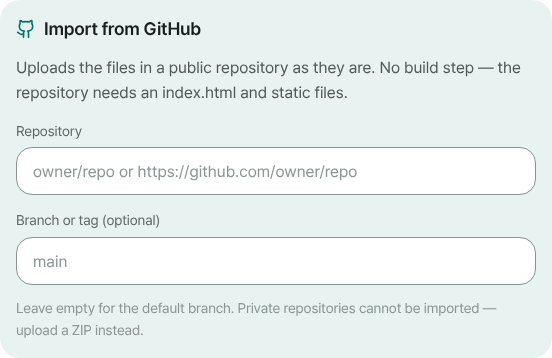
Enter the repository in the “Repository” field and add a branch or tag if you need one. - 3
Choose an address and press Publish
Type a name in the address field and press Publish: importing and publishing happen in one go. If it's your first time, a sign-up screen appears (just your email), and when you come back, the address and repository you typed are still there. When it finishes, the “Published” screen shows your address. If any files couldn't be imported, a “N files could not be uploaded” notice appears with it.
myname.html2site.com LiveThe repository's files open at this address.
- 4
After you change the repository, update the site
An import copies the files as they are at that moment, so once imported, the site is no longer tied to the repository. To bring changes in, edit them in the editor, or upload the changed folder as a ZIP, then press Publish. Every publish leaves a version, so you can roll back to an earlier state from the Versions tab.
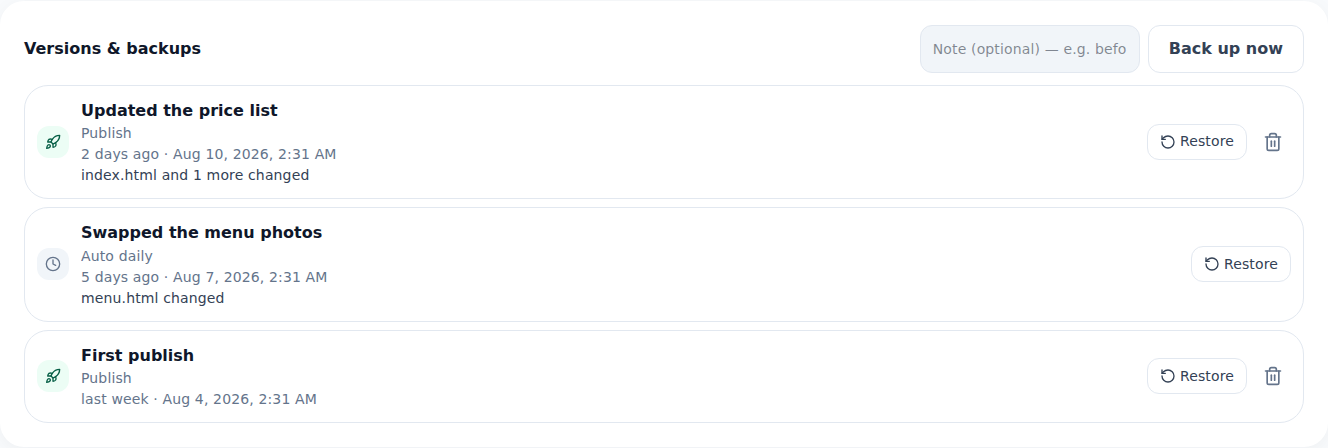
The Versions tab lets you roll back to an earlier published state.
Frequently asked questions
Do I need to connect a GitHub account, or have a server or hosting account?
No. Just enter the address of a public repository. There's no GitHub login, no server, and no hosting account. Sign up with only your email (no password, no card) and start for free.
Can I import a private repository?
No, only public repositories can be imported, because the files are fetched from the address alone, with no GitHub account connected. For a private repository, download it to your computer, make a ZIP, and use “Upload a ZIP”.
Does it work with repositories that need a build, like React or Vue?
Nothing is built. Only a repository or branch with an index.html at the top level, meaning the build output is already in it, works. Otherwise, build on your own computer and upload the output folder as a ZIP.
Which branch is imported, and can I pick a branch or tag?
If you leave “Branch or tag (optional)” empty, the repository's default branch is imported. Type another branch or tag name to import the files as they are at that point. You can also paste a github.com/owner/repo/tree/branch address as it is.
If I change the repository, does the site update automatically?
No. After the import, the site isn't connected to the repository, so there's no automatic deploy. Edit the changes in the editor, or upload them again as a ZIP, and then publish.
What if the repository is large, or the import fails?
Free gives you 5 sites and 100MB of storage, and a repository is imported within the storage your plan has left, up to 2,000 files. Hidden files such as .git, plus server code and executables, are left out, and documents like README.md are left out by Upload protection and show up in the notice. Your site isn't affected. If GitHub is limiting requests, try again in a moment or upload a ZIP.
Read next
- Upload a site folder as a ZIP and get your own address Guide to publishing a multi-file site (CSS, JS, images, extra pages) from a ZIP or a whole folder to your own address for free (English)
- Put an HTML file you already have on a real address Step-by-step guide to putting an existing HTML file online at your own address, free, with no server, GitHub, or hosting account (English)
- Undo a publish: roll your site back to an earlier version How to roll back a published website to an earlier version: review, restore, undo the restore, and what free and Plus keep (English)
- Publish a website from your AI client with MCP How to publish HTML straight from an MCP-capable AI client (Claude Desktop, Cursor and more) to HTMLtoSITE: issue a token, add the MCP server, ask in chat — no copy-paste
Trying it is faster than reading about it — paste your HTML and publish it in a minute.