
How to publish an HTML site without Git or GitHub
Last updated: 2026-11-11
The short version — pick Paste or Upload a file on the first screen, choose an address and press [Publish]. No repository, no terminal. A free address like myname.html2site.com goes live, and you can update it later without Git too.
At a glance
- Time needed
- About 2 min
- Plan required
- Free plan
- Coding knowledge
- None
- Where to do it
- The upload cards on the home page
Step by step
- 1
The Git route has steps you simply skip here
With GitHub Pages you create a repository, commit your files, then switch Pages on in the settings. None of that exists here. The first screen at htmltosite.com shows three cards: choose “Paste your page” if you've copied the code, or “Upload a file” if you have a file saved.
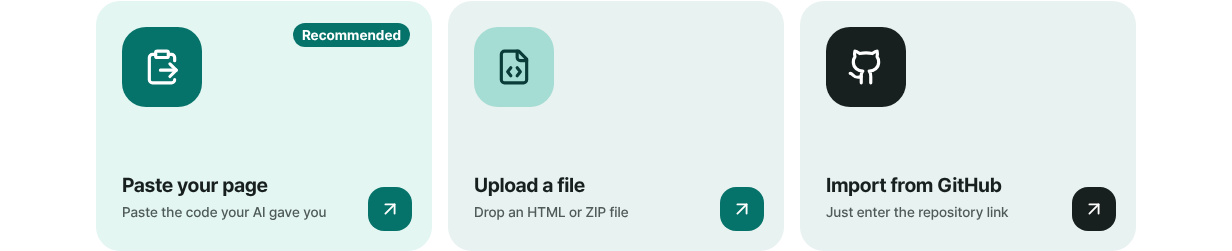
No repository to create: start straight from a card on the first screen. - 2
Paste your HTML or drop your file
Paste AI-generated code into “Paste your page”, or drop a saved file on “Upload a file”. A single HTML page works, and so does a ZIP of a whole folder (its top level needs an index.html to become the first page). A PC and a phone preview appear right away, so you see the result before anything goes live.
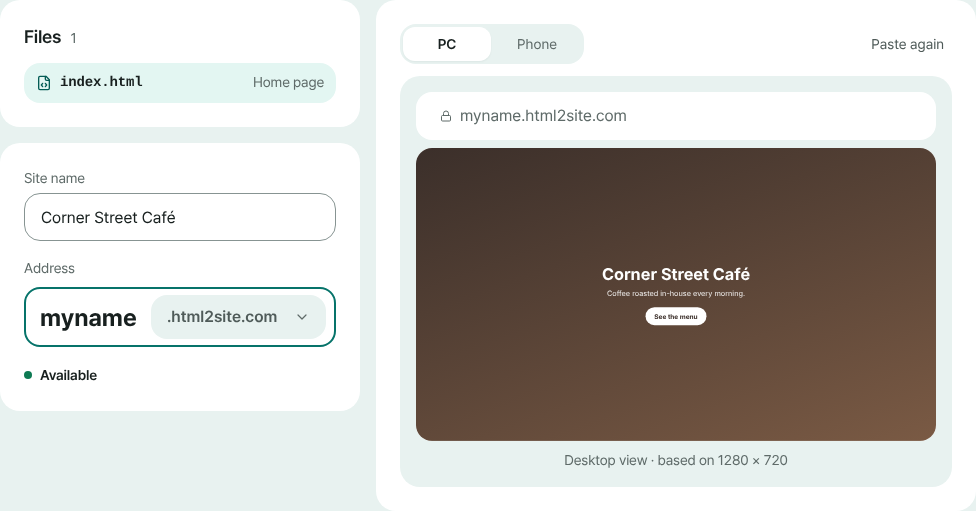
One screen to check the preview and set the name and address. - 3
Choose an address and press Publish
Type the name you want under “Your address”. When it says “Available”, press [Publish]. On your first visit a sign-up screen appears once, and it only asks for an email (there's no password). When it's done you can copy the address and share it straight away.
myname.html2site.com LiveA live address with no GitHub account involved. It opens over secure HTTPS.
- 4
Changing it later doesn't need Git either
Edit the code right in the editor's Files tab and press [Publish] again, or use “Paste new version” on your site's card to paste fresh HTML. The address stays the same. If an edit goes wrong, open the Versions tab, press “Restore this version”, then publish.
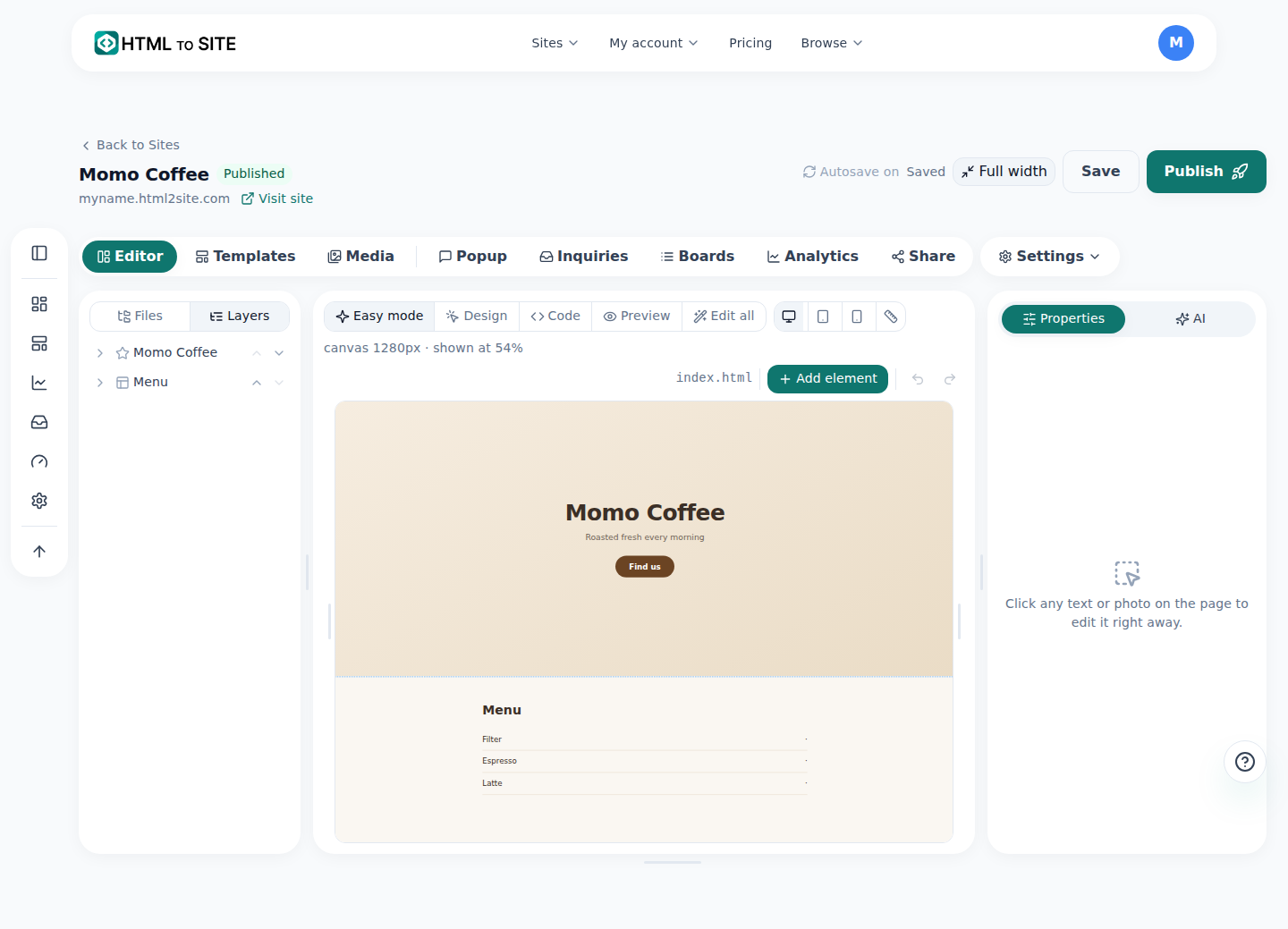
Edit in the Files tab and publish again. No commits, no pushes.
Frequently asked questions
Do I need a GitHub account to put my site online?
No. Sign up with just an email (no password, no card) and you can start. You never touch a repository or a terminal.
Can I still bring in files from a GitHub repository?
Yes. “Import from GitHub” on the first screen takes a public repository. It uploads the files as they are and doesn't build anything, so the repository needs an index.html. For a private repository, upload a ZIP instead.
Is it free, and is the address HTTPS?
You can start for free, and there's no time limit. Your address looks like myname.html2site.com and opens over HTTPS. Free sites carry a small “Made with HTMLtoSITE” badge in the corner, which goes away from Plus.
Can I use my own domain later?
Yes — connecting your own domain starts at Plus. Buy the domain separately, then connect it under “Address & domain” in the editor. Until then, the free address works as it is.
What about a site with separate CSS and image files?
Zip the whole folder and upload it. The folder structure is kept, so CSS and images linked by relative paths keep working. Put an index.html at the top level.
What can't I do without Git?
Server code (.php, .py and the like) is blocked rather than run. There's also no build step, so a React or Vite project needs to be built on your own computer first, and you upload the output folder. And nothing deploys automatically on a push: you paste or upload instead.
Read next
- Put an HTML file you already have on a real address Step-by-step guide to putting an existing HTML file online at your own address, free, with no server, GitHub, or hosting account (English)
- Upload a site folder as a ZIP and get your own address Guide to publishing a multi-file site (CSS, JS, images, extra pages) from a ZIP or a whole folder to your own address for free (English)
- Import a GitHub repository and deploy it as a static site Guide to importing a public GitHub repository's static files and publishing them free at your own address: no build step, index.html required (English)
- Start on a free address, add your own domain later How to start on a free address and add your own domain later: which one you need, buying a domain separately, connecting from Plus, two DNS values, waiting for DNS, automatic HTTPS (English)
Trying it is faster than reading about it — paste your HTML and publish it in a minute.