
Start on a free address, add your own domain later
Last updated: 2026-11-11
The short version — publishing gives you a free address like myname.html2site.com straight away, so there's no domain to buy up front. When you want your own, buy one separately, connect it under [Address & domain] in the editor, and add the two values shown there at your domain provider's DNS. Connecting starts at Plus.
At a glance
- Time needed
- About 5 min
- Plan required
- Plus
- Coding knowledge
- None
- Where to do it
- Editor
Step by step
- 1
Decide which one you actually need
If you only want a link to share, the free address does the job. If it's for a shop, a brand or an ad campaign, your own domain fits better. Can't decide? Publish on the free address first: the site stays exactly as it is, and you add a domain later without rebuilding anything.
Which address do I need?I just want to share a link Free address — myname.html2site.comA business, brand or ads Your own domain — www.your-domain.com - 2
Buy the domain separately
A domain of your own is bought where domains are sold. Its price is set by that seller and is separate from your site on HTMLtoSITE. If you haven't bought one yet, you can leave this step for later, because the free address keeps working without it. If you already own one, move straight on.
www.your-domain.com LiveYou buy the domain separately. This is the address you'll connect to your site.
- 3
Connect it under [Address & domain]
Open [Address & domain] in the editor's left menu, enter the domain in the [Connect a new domain] box and press [Connect]. The screen then shows two values: “Site connection” (a CNAME) and “Domain ownership” (a TXT). Use [Copy] to add both lines in the DNS settings where you bought the domain. Connecting your own domain starts at Plus, so on the free plan this screen shows a plan prompt.
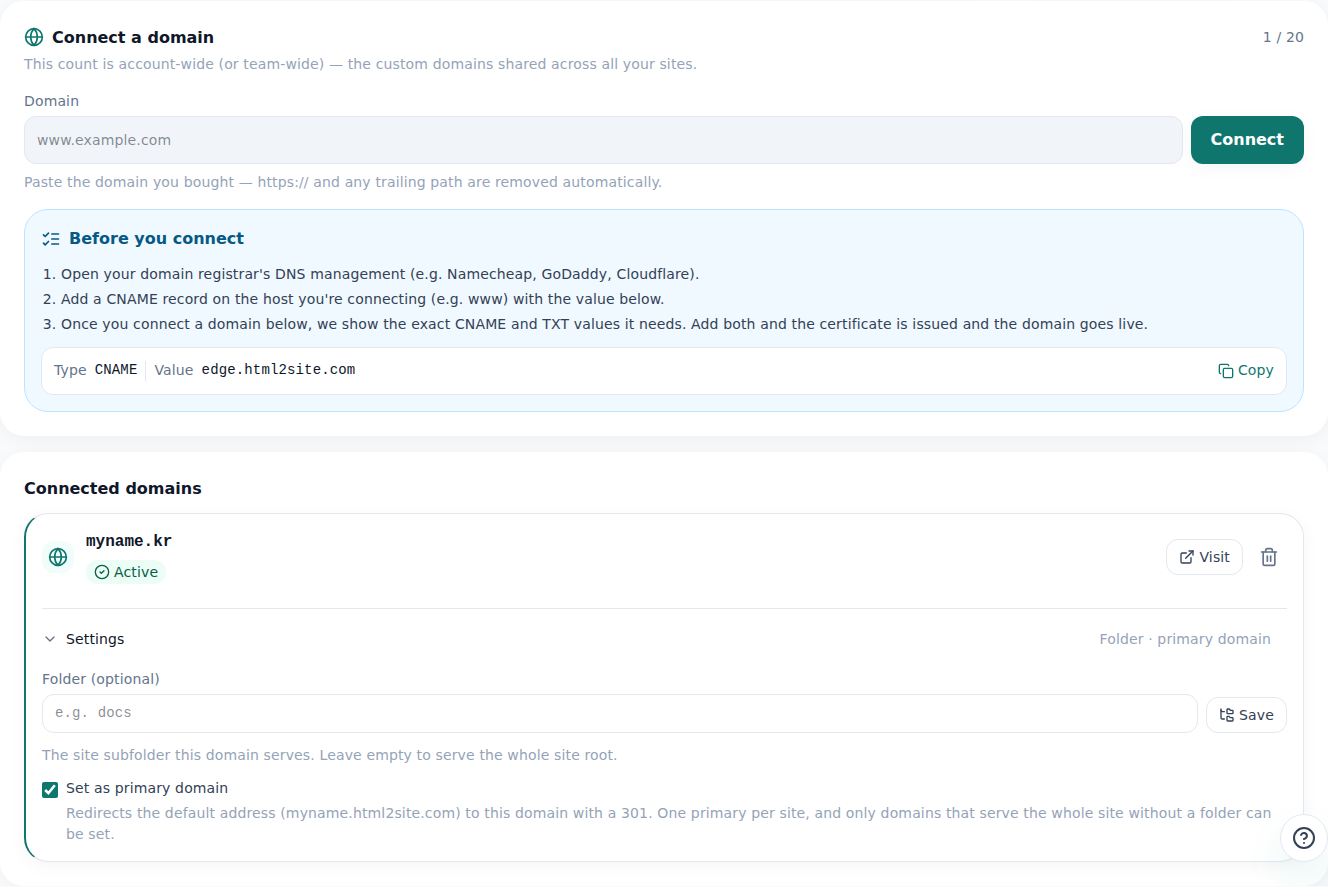
Your default address stays open, and your own domain is added beneath it. - 4
Give DNS time to catch up, and you're done
DNS changes take a while to spread. The domain's row shows “Waiting for setup” until both values are found, then switches to “Connected”. That's usually within 10 minutes and can take a few hours. Press [Check again] if you want to look right now. Secure HTTPS is added for you, and the free address still opens too.
www.your-domain.com LiveOnce connected, the site opens on your own domain. The free address stays open alongside it.
Frequently asked questions
Can I start for free without owning a domain?
Yes, and it's the easiest way to begin. The moment you publish, a free address like myname.html2site.com opens. Add a domain whenever you need one, with no need to rebuild the site.
Where do I buy a domain, and does it cost extra?
You buy it where domains are sold, and that seller sets the price. It's separate from your HTMLtoSITE plan. While you use the free address, there's no domain cost at all.
Which plan do I need to connect my own domain?
Plus and up. You can connect 1 domain on Plus and 3 on Pro. On the free plan, [Address & domain] shows a plan prompt instead, and your site keeps opening at its free address.
How long does connecting a domain take?
Usually “Connected” appears within 10 minutes of adding the values. How fast DNS spreads depends on your domain provider, so it can take a few hours. Leave the screen open and it re-checks by itself, and it tells you which of the two values it can't see yet.
What happens to the free address once I add my domain?
It keeps working. If you want visitors to land on your own domain, turn on [Set as primary domain] on the connected domain's row. If you disconnect the domain later, it stops opening the site, but the free address is untouched.
Can I connect an address without www?
Only if your domain provider supports a root CNAME (CNAME flattening or ALIAS). In most cases the www address connects most smoothly. Send the address without www to it with your provider's forwarding.
Read next
- How to connect your own domain to your site Step-by-step guide to connect your own domain to a published HTML site: enter the address, add the CNAME and TXT values at your domain provider, wait for Connected, HTTPS automatic (from Plus)
- Put an HTML file you already have on a real address Step-by-step guide to putting an existing HTML file online at your own address, free, with no server, GitHub, or hosting account (English)
- Beyond the share link: move your AI-made page to your own address How an AI tool's share link or built-in publishing differs from your own address, and how to move the page by copying its HTML to html2site.com (English)
- How to publish an HTML site without Git or GitHub How to publish an HTML or ZIP site to a free address without Git, GitHub or a terminal (a GitHub Pages alternative): paste or upload, pick an address, then update and roll back without Git (English)
Trying it is faster than reading about it — paste your HTML and publish it in a minute.