
Publish a website from your AI client with MCP
Last updated: 2026-11-11
The short version — issue a token in your account settings, add it to your AI client's MCP server config, and saying “publish this” in the chat creates the site and publishes it. No copy-paste, no server, and it works on the free plan too.
At a glance
- Time needed
- About 5 min
- Plan required
- Free plan
- Coding knowledge
- None
- Where to do it
- Account
Step by step
- 1
Issue a token in your account settings
Open “Account settings” from [Manage account] and go to the [AI tools] tab. In the “API access tokens” card, name the token (for example Claude Desktop) and press [Get verification code] — a 6-digit code arrives by email. Enter it and press [Issue token]. The token is shown only once, so press [Copy] and keep it somewhere safe.
Account settings › AI tools › API access tokensToken name Claude Desktop6-digit code from your email 000000Issue token hts_pat_… → Copy - 2
Copy the config for your client from the connect screen
On the same tab, press [How to connect →] to open the “Publish straight from your AI tool (MCP)” screen. It lists the MCP endpoint and a ready-made config for Claude Desktop, Claude Code and Cursor — press [Copy] on the one you use. You can open this screen without signing in.
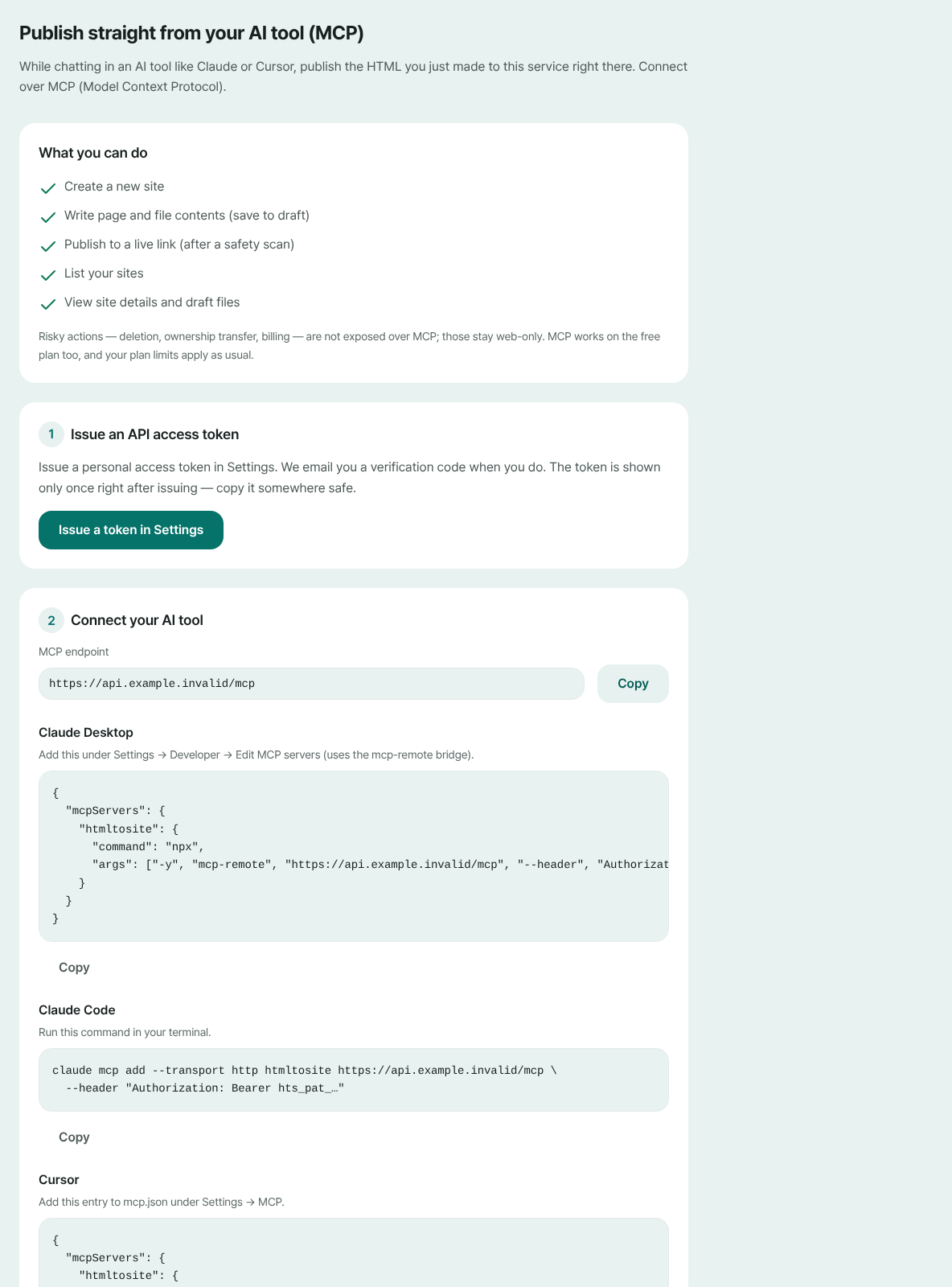
The endpoint and a config per client live on one screen. Only the token placeholder (hts_pat_…) needs your own value. - 3
Paste it into your AI client and fill in the token
Paste the config into your client's MCP server settings and replace hts_pat_… with the token from step 1. Claude Code takes a single terminal command; the Claude Desktop config uses npx, so it needs Node.js. Save, restart the client, and the htmltosite server connects.
mcp.json{ "mcpServers": { "htmltosite": { "url": "MCP URL from the /mcp screen", "headers": { "Authorization": "Bearer hts_pat_…" } } }} - 4
Ask for the publish in the chat
Keep building as usual, then say “publish it to HTMLtoSITE”. The AI creates a new site, writes the files into its draft and asks to publish. Everything is safety-scanned first, and once it passes, the live address opens right away.
Claude DesktopBuild a one-page site for Momo Coffee and publish it to HTMLtoSITE. Published. It's live at myname.html2site.com. - 5
Check the address, and revoke tokens you no longer use
The address the AI gives you is the site's address. The site also shows up in your site list, and you can keep editing it in the editor. If you stop using that client or a token leaks, press [Revoke token] on the same tab — whatever was using it is cut off immediately.
myname.html2site.com LivePublishing from the AI gives you an address like this right away. Your own domain connects from Plus.
Frequently asked questions
Can I publish with MCP on the free plan?
Yes, it works on the free plan. Plan limits such as the number of sites and storage apply exactly as they do on the web, and when you hit one the AI passes the plan message on to you.
Does it work with ChatGPT or claude.ai on the web?
Not yet. It works in MCP-capable tools where you can set an address and a Bearer token header, such as Claude Desktop, Claude Code and Cursor. For any other AI, use the copy button on its code block, paste the HTML on the first screen and publish from there.
Can the AI delete my site or make payments?
No. Over MCP the AI can only create sites, write files, publish, and list or view your sites. Risky actions such as deleting, transferring ownership and payments are web-only.
I lost my token. Can I see it again?
No — a token is shown only at the moment it's issued. Issue a new one, swap it into your client's config, and cut the old one off with [Revoke token]. There's a cap on active tokens, so revoke the ones you don't use.
Can I upload images and other binary files over MCP?
MCP writes text files only — HTML, CSS, JS and the like. Upload images and other binary files in the web editor.
Read next
- How to publish what Claude built as a real website Step-by-step guide to publish the HTML page built in Claude at your own free address on html2site.com by pasting it, with no server, GitHub or hosting account (English)
- Put an HTML file you already have on a real address Step-by-step guide to putting an existing HTML file online at your own address, free, with no server, GitHub, or hosting account (English)
- How to connect your own domain to your site Step-by-step guide to connect your own domain to a published HTML site: enter the address, add the CNAME and TXT values at your domain provider, wait for Connected, HTTPS automatic (from Plus)
Trying it is faster than reading about it — paste your HTML and publish it in a minute.