
Beyond the share link: move your AI-made page to your own address
Last updated: 2026-11-11
Short answer: a share link or built-in publishing from an AI tool typically keeps the page on that service's address, so putting it on your own domain from there is hard. Copy the page's HTML, paste it into “Paste your page” on the home screen, and press Publish: you get a free address of your own, with editing and rollback in your hands.
At a glance
- Time needed
- About 2 min
- Plan required
- Free plan
- Coding knowledge
- None
- Where to do it
- The upload cards on the home page
Step by step
- 1
Decide when it's worth moving
For a quick look, a share link is enough. If the address is going on a business card, a social profile, a page for customers, or a site for your own domain, moving it is the better call. The biggest difference is who holds the address, as the comparison below shows.
Share link ▸ Your addressWho holds the address That service → youYour own domain Typically not possible → from PlusEditing later Inside that service → the editorGoing back to an earlier look Varies by tool → Versions tab - 2
Copy or download the page's HTML
What you need is the page's code, not the share link's address. Press the copy button on the code block, or download the file if the tool offers it. If the page only exists as separate component pieces, ask the AI to give it again as one HTML file with its styles and scripts inside. What a given tool lets you export differs, so check inside that tool.
Claude · ChatGPT · Gemini · Copilot
Give me this page again as a single HTML file, with the CSS and scripts inside it.index.html Copy<!doctype html><html lang="en"> <title>My page</title> …</html> - 3
Paste it into “Paste your page”
On the htmltosite.com home screen, paste the code into the “Paste your page” card and a preview opens. If you saved a file, drop the HTML or ZIP on the “Upload a file” card instead and it follows the same path. No server or GitHub needed.
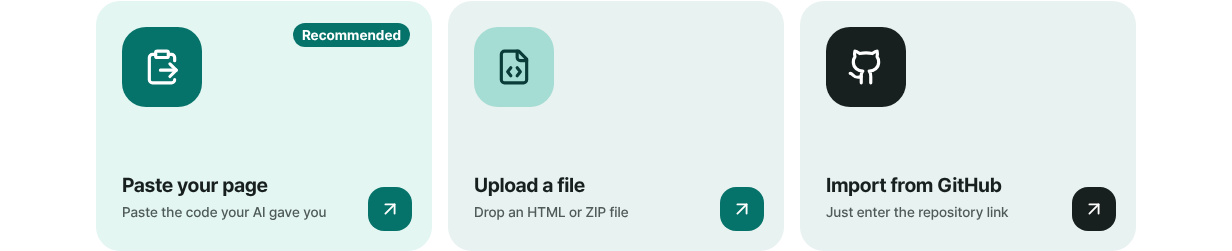
Paste the code you copied into the “Paste your page” card. - 4
Choose an address and press Publish
The name in the “Your address” field is filled in from your page title, and if it says Available you can keep it. The first time you press Publish, a one-time sign-up screen asks only for an email, with no password, and publishing carries on afterward. A malware scan runs before anything goes live.
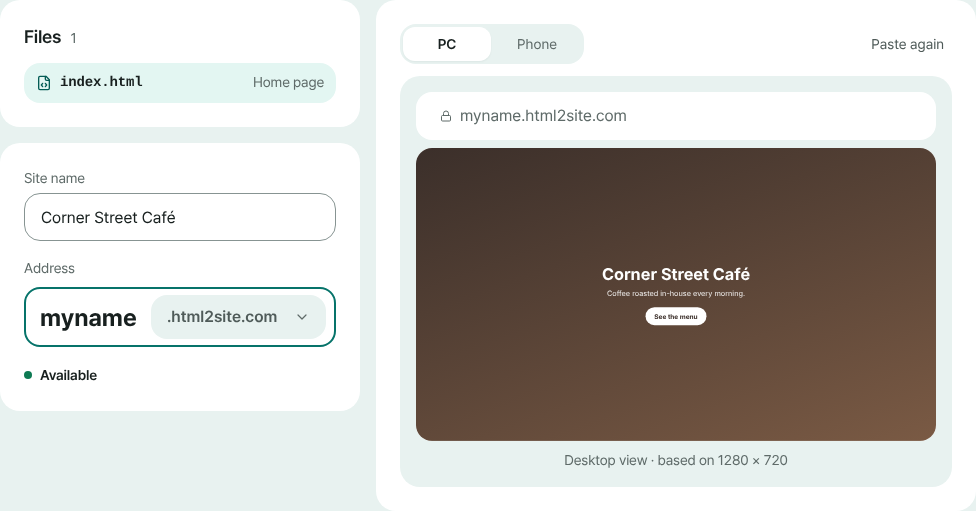
Check the preview, choose the address, then press Publish. - 5
Share the new address and swap out the old link
On the Published screen, use Copy link to take your new address. The old share link still belongs to that service, so replace it wherever you already posted it. From there, Edit lets you change the page, and Restore on the Versions tab takes you back if something goes wrong.
myname.html2site.com LiveTo put it on your own domain, connecting one starts at Plus.
Frequently asked questions
How is an AI tool's share link different from my own address?
A share link typically stays on that service's address, and the page stays tied to that service. Your own address opens at html2site.com or your own domain, and you decide how editing and version rollback work. A share link is fine for a quick look, but for an address you'll use for a long time, moving is easier.
Can I publish a Claude artifact to my own website?
If you can copy its code, yes. A page made of HTML, CSS, and JavaScript can be pasted as it is. If it's a component that needs a build, ask Claude to give it again as a single HTML file. Copying just the share link's address doesn't work, because what you need is the code.
Can I move a page I published inside ChatGPT to my own address?
In general, a publishing feature inside a service hosts the page on that service, and that service sets the conditions for using it. Check the current terms there. To keep a page at your own address, copy its code and paste it into HTMLtoSITE. You can keep both copies if you like.
Can I connect my own domain instead of a share link?
A share link itself typically can't take one. Once you move to HTMLtoSITE you get a free html2site.com address, and connecting your own domain starts at Plus. A free site shows a small “Made with HTMLtoSITE” badge in the corner.
Do I need a server, GitHub, or a hosting account?
No. Paste the code you copied and publish. Signing up takes just an email, with no password or card. Free includes 5 sites and 100MB of storage.
How do I edit or roll back after moving?
Open the editor with Edit, change the code, and press Publish: the same address updates. Every publish leaves a version, and Restore on the Versions tab brings back an earlier look. If the AI gives you a revised version, paste it in as a new version of the same address.
Read next
- Put an HTML file you already have on a real address Step-by-step guide to putting an existing HTML file online at your own address, free, with no server, GitHub, or hosting account (English)
- How to publish what ChatGPT built as a real website Step-by-step guide to publish the HTML page built in ChatGPT at your own free address on html2site.com by pasting it, with no server, GitHub or hosting account (English)
- How to publish what Claude built as a real website Step-by-step guide to publish the HTML page built in Claude at your own free address on html2site.com by pasting it, with no server, GitHub or hosting account (English)
- Start on a free address, add your own domain later How to start on a free address and add your own domain later: which one you need, buying a domain separately, connecting from Plus, two DNS values, waiting for DNS, automatic HTTPS (English)
Trying it is faster than reading about it — paste your HTML and publish it in a minute.