
Make a wedding invitation page with AI and share it as one link
Last updated: 2026-11-12
Short answer: a good e-invite needs only names, date and time, the venue with a map button, directions, a greeting, a photo or two, and a way to reply by phone, text or email. Have an AI write it as a one-page HTML file, paste it on the htmltosite.com home screen, and publish: you get a free link you can drop into any chat or email.
At a glance
- Time needed
- About 10 min
- Plan required
- Free plan
- Coding knowledge
- None
- Where to do it
- The upload cards on the home page
Step by step
- 1
Decide the ten things it should contain
Write these down before you ask the AI and the first result will be close to what you want. For the map button, open the venue in your maps app and copy its share link. The last line, gifts or bank details, is the one to decide on now; the FAQ below explains why.
checklist.txt1. Both names (and whether to list parents)2. Date, weekday and start time3. Venue name, and the room or hall4. Map link: the share link copied from your maps app5. Getting there: train or bus, parking, one line each6. A short greeting, three or four lines7. Photos: one main photo plus two or three more8. A call button for each of you9. How guests reply: call, text or email10. Gifts, registry or bank details: decide first whether they belong on a public page - 2
Give the AI this prompt, as written
Paste the prompt below into the AI chat you already use (ChatGPT, Claude, Gemini or similar) and replace only the [bracketed] parts. The trick is naming the photo files in advance, so later you just upload files with those exact names. When the answer arrives, press the copy button on the code block.
prompt.txtBuild a mobile wedding invitation as one HTML page. Reply with a single code block.1) Designed for a phone screen (include the viewport meta tag), large text, no sideways scrolling.2) Top: a main photo (main.jpg) with “[Name] & [Name]” over it.3) Greeting: “[3-4 line invitation text]”.4) When: “[date, weekday, time]”. Where: “[venue, hall]”.5) A big “Open map” button linking to “[maps share link]”, opening in a new tab.6) Getting there: train “[…]”, bus “[…]”, parking “[…]”.7) Photo gallery: photo1.jpg, photo2.jpg, photo3.jpg (same folder, exact file names).8) Two “Call” buttons using tel: links: “[number]” and “[number]”.9) No bank details and no home address.10) Set <title> to “[Name] & [Name] are getting married” and the meta description to “[date · place]”. No external libraries; colors in a [mood] tone. - 3
Paste it on the home screen and publish
On the htmltosite.com home screen, paste the code into the “Paste your page” card and a PC and phone preview appear. Check the text size and buttons in the phone preview, then type an easy-to-remember name under “Your address”, such as initials and the date. When “Available” shows, press Publish. If it's your first time, a one-time sign-up asks for just your email.
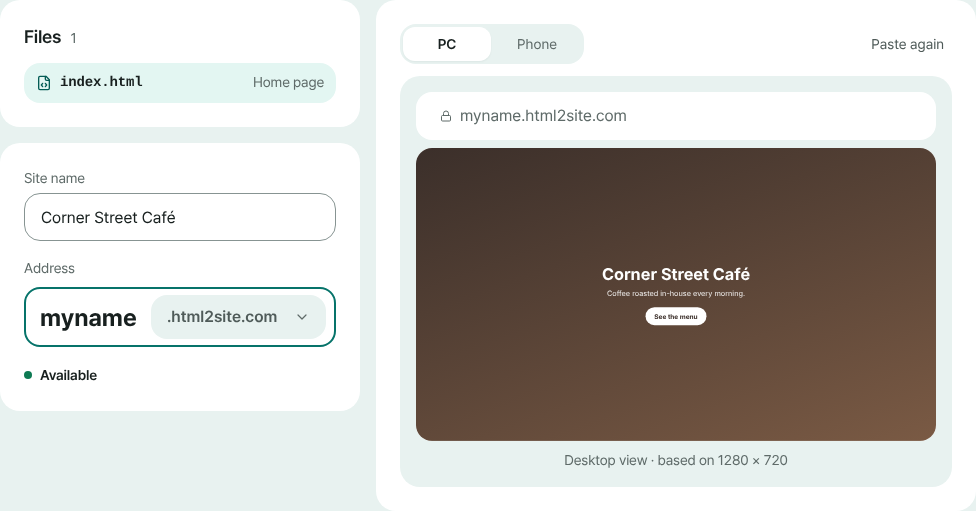
Check the phone preview, set the address, then publish. - 4
Upload your photos under the names you chose
On the “Published” screen press “Edit”, open the “Files” tab, press the + button (“Add — new file · upload · ZIP”) and choose “Upload files”. Upload main.jpg, photo1.jpg and the rest exactly as named in the prompt: a name with spaces or brackets is refused, and capital letters must match. Shrink phone photos to about 1,600px wide so the page opens quickly on guests' mobile data. Then press Publish again, because uploaded files only go live after publishing.
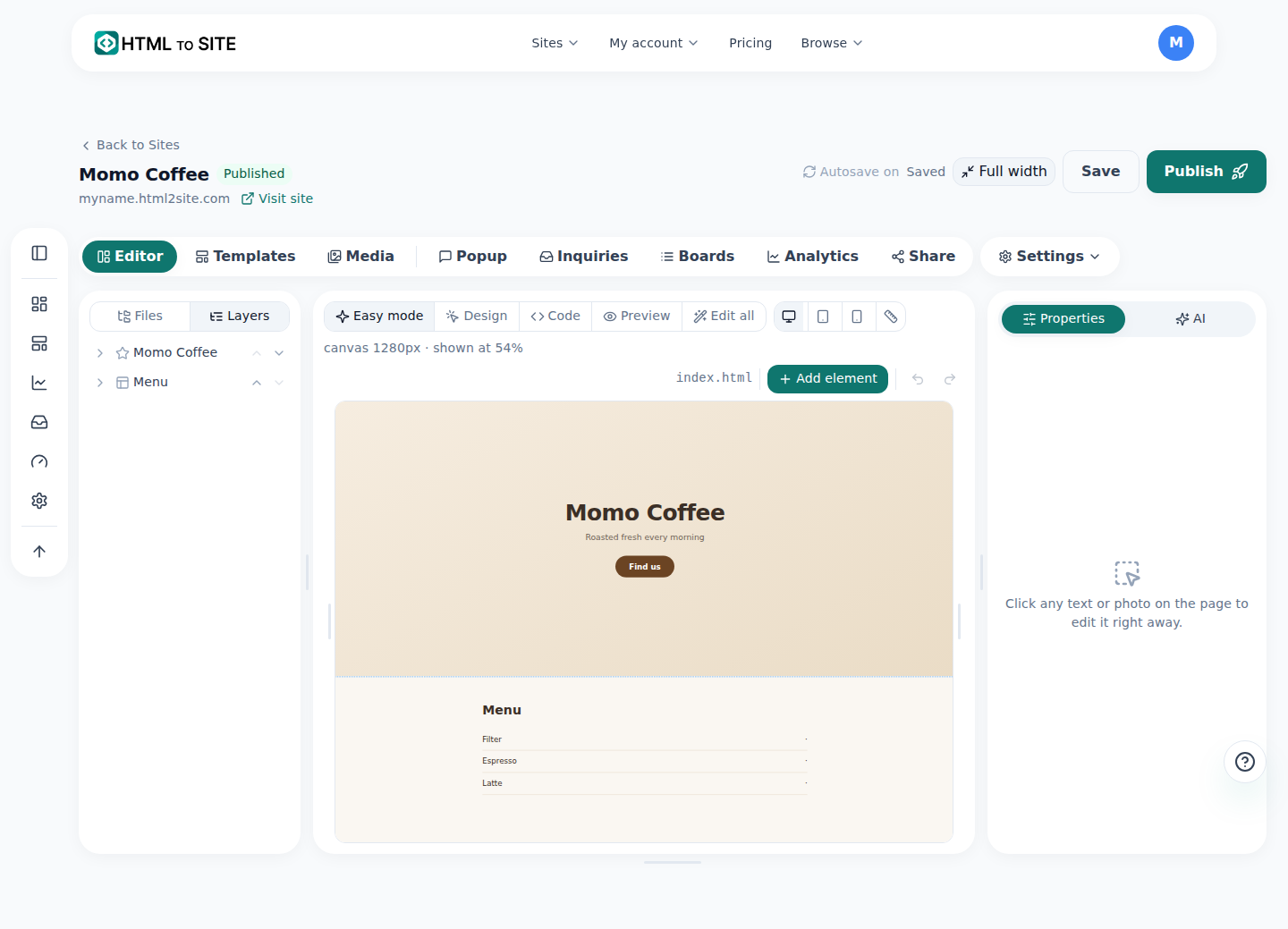
Photos go up from the + button in the Files tab. - 5
Set the link preview, then send the link
Open Settings > Site settings > Search & sharing. Under “Share card”, set the “One-line description” and the “Link preview image” (1200×630 recommended); messaging apps use them to build the link preview. The title comes from your page's <title>. Changes here show without publishing, except an image you just uploaded. For a private event set “Search” to “Off — hidden from search results”, then copy the link from the “Published” screen with “Copy link” and send it.
Settings > Site settings > Search & sharingTitle in search results Your page's <title> is used firstOne-line description Date and place in one line (wins over the page's own description)Link preview image Main photo, landscape, 1200×630 recommended · Upload newSearch Off — hidden from search results
Frequently asked questions
Is it safe to put bank details or my home address on an invitation page?
Anyone with the link can read the page, so add bank details, a home address or a personal phone number only if you must. Turning Search off hides the page from search results only; people who have the link can still open it. The safest choice is to leave payment details off the page and send them privately to those who ask. If you do want them online, put them on a separate page and lock it with Page lock (Plus and up): choose “One page” as the range, add a “Shared password (PIN)”, and give the password to guests yourself.
How do guests RSVP?
A one-page site can't keep a guest list, but three simple ways work: a call or text button (tel: and sms: links) or an email link (mailto:). Add one line to the prompt, such as “Two buttons: Call us, and Text us”. If you want a form, ask for a plain form with name, attending yes or no, number of guests and a note, with no password field. When you publish, the form is connected automatically and replies land in Inquiries, with an email alert. It's an inbox, not a headcount tool: you count the replies yourself, and the free plan shows the last 7 days (older ones are kept and show from Plus).
Is it really free? Can I upload photos?
Pasting, publishing and uploading photos are all free, with no time limit. Free pages carry a small “Made with HTMLtoSITE” badge in a corner, which you can remove from Plus. Connecting your own domain is also from Plus.
My link preview shows the wrong title or picture. Why?
Your page's own <title> is used first (the title in settings is used only when the page has none), the one-line description in settings wins over the page's, and the image appears after you upload it and publish. If it still looks old, the messaging app has probably cached the preview. Services differ, but sending the link with ?v=2 added to the end often makes it read the page fresh.
What if the date or place changes? Will it stay online until the day?
Edit index.html in the editor's Files tab and press Publish: the link stays the same, so nobody needs a new one. If an edit goes wrong, roll back from Versions. The page stays at the same address until you delete it. Open it on your phone the day before and tap the map and call buttons, and after the event delete the site or turn Search off.
Does this work for a birthday, a party or a shop opening?
Yes. Swap the names and greeting for the event and the host, drop lines you don't need (like gifts), and add what guests need: a dress code or schedule for a party, opening hours and an offer for a shop opening. Photos, the share card and publishing work the same way.
Read next
- Copy-paste prompts: make a one-page website with ChatGPT or Claude A bookmarkable prompt pack for ChatGPT, Claude, Gemini and other AI tools: one base prompt, 12 page-type prompts, follow-up fixes, and how to publish the single HTML file free (English)
- Put an HTML file you already have on a real address Step-by-step guide to putting an existing HTML file online at your own address, free, with no server, GitHub, or hosting account (English)
- Start on a free address, add your own domain later How to start on a free address and add your own domain later: which one you need, buying a domain separately, connecting from Plus, two DNS values, waiting for DNS, automatic HTTPS (English)
- 15 things to check before you send a website link (30 seconds each) A 15-point checklist to run before sharing a one-page or small HTML site: phone view, links, file paths, title, description and share image, unknown addresses, search, secret keys, versions (English)
Trying it is faster than reading about it — paste your HTML and publish it in a minute.