
Copy-paste prompts: make a one-page website with ChatGPT or Claude
Last updated: 2026-11-12
Short answer: start every request with one base prompt that says “one HTML file, phone first, real copy”, and any AI will hand back an index.html you can publish as-is. Copy one of the 12 page prompts below, swap the [brackets], then paste the code into the HTMLtoSITE home screen and publish.
At a glance
- Time needed
- About 5 min
- Plan required
- Free plan
- Coding knowledge
- None
- Where to do it
- The upload cards on the home page
Step by step
- 1
Paste the base prompt first
AI-made pages usually fail to go live for three reasons: the answer is split into several files, it loads files you don't have, or it breaks on a phone. The six rules below prevent all three. If your tool still splits the output, reply “Merge everything into one index.html.”
ChatGPT · Claude · Gemini
Build a web page and follow these rules. 1) ONE HTML file only (index.html). Put CSS in a style tag and JS in a script tag inside the same file. No other files, no npm, no build step. 2) Design for phones first (viewport meta tag, body text 16px or larger, buttons at least 48px tall, no sideways scrolling), then center it on wide screens. 3) No lorem ipsum. Write real copy from the details I give you, and leave anything unknown as [brackets]. 4) No external image URLs: use CSS gradients, emoji or inline SVG. 5) Fill in the title tag and the meta description. 6) Reply with one code block starting with the doctype and no explanation. Do not split it into several files.index.html Copy<!doctype html><meta name="viewport" content="width=device-width, initial-scale=1"><style>…</style><main>…</main><script>…</script> - 2
6 prompts for shops, profiles and events
Add one of these straight after the base prompt and replace only what's in [brackets]. Leave a blank if you don't know it and the AI will keep a placeholder. Always double-check prices and opening hours in the result.
prompts-1-6.txt1. Coffee shop — A page for [shop name]. Four signature drinks with prices, opening hours, a map-style “find us” block, a tap-to-call button and an Instagram button (link [url]). Mood: [warm and calm].2. Portfolio — One-page portfolio for [name], a [job title]. One-line intro, six projects (title, my role, one sentence), and a “work with me” email button. Use colored blocks instead of thumbnails.3. Menu / price list — Menu for [business name]. Three categories (e.g. tacos, sides, drinks) with item name, price and a one-line description. Add a “sold out” tag style and a note line for allergens.4. Event page — Page for [event name] on [date]. Time, venue, schedule, what to bring, and a big RSVP button at the top (link [url]).5. Link-in-bio — A links page for my Instagram bio: name, one-line bio, and five large stacked link buttons (shop, newsletter, YouTube, booking, contact).6. Resume — One-page resume for a [job title] application: summary, three roles (company, dates, one result each), skills, contact. It must print on a single page. - 3
6 prompts for launches, schedules, FAQs and notices
These are small single-purpose pages. For the ones with a set file name (404, thank-you) the name is in the prompt. Add any of them after the base prompt.
prompts-7-12.txt7. Launch / waitlist — Coming-soon page for [product]. One-line promise, three features, launch date, and one big button that goes to my sign-up form (link [url]). No other buttons.8. Class schedule — Weekly timetable for [class name]: day, time, teacher, spots. A table on desktop that turns into one card per day on phones. The contact button should call my number.9. FAQ — Eight frequently asked questions for [service]. Tap a question to expand the answer. End with a “Still unsure?” contact button.10. 404 page — File name 404.html. “We can't find that page” message, one short apology line, a big button back home, three links to popular pages. Brand color [color].11. Thank-you page — File name thanks.html. Shown after someone contacts me: when I'll reply, two links to read meanwhile, and a back-home button.12. Closure notice — Holiday closure page for [dates]: the closed dates in the biggest type, the reopening day, an urgent contact line, and a short thank-you to regulars. - 4
When it isn't right, send one of these fixes
It rarely comes out perfect on the first try, and that's fine. Reply in the same chat with one line below. Ending every request with “send the full code again” avoids getting partial snippets.
fix-prompts.txtA. Check for anything that overflows or gets cut off at 360px wide and fix it. Send the full code again.B. Change the main color to [color] and make the body text one size larger. Send the full code again.C. Remove every external image URL and replace them with CSS or inline SVG. Send the full code again.D. If there is more than one file, merge everything into a single index.html with CSS and JS inside it.E. Rewrite the copy shorter and friendlier. Keep numbers and proper names exactly as they are.F. Wire the buttons to a phone call (tel:), an email (mailto:) and my messenger link, and leave unknown values as [brackets]. - 5
Paste the code into “Paste your page” and publish
Hit the copy button on the code block, then paste it into the “Paste your page” card on the htmltosite.com home screen. In the preview that opens, choose “Your address” and press Publish. The preview is drawn in a restricted frame for safety, so some script behavior or external images can look missing there. Open your published address on a phone and tap through it once.
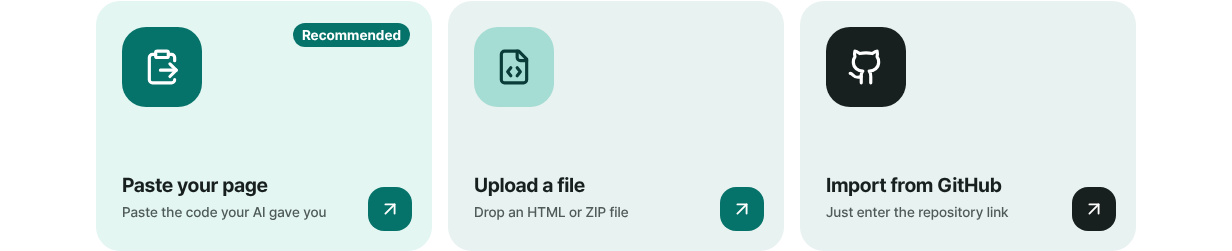
Code from the AI goes straight into the “Paste your page” card.
Frequently asked questions
Do I need a server, GitHub, or a hosting account to publish AI-generated HTML?
No. Paste the code, choose an address, and it's live for free at something like myname.html2site.com. You sign up with just an email, and the free plan covers 5 sites with no time limit. A custom domain is available from Plus.
How is this different from the share link inside ChatGPT or Claude?
A share link inside an AI service stays on that service's own address. Here the same code opens on your address (html2site.com, or your own domain once connected). Because it's just your HTML file, you can take it anywhere later.
What if the AI gives me several files instead of one?
Reply: “Merge everything into one index.html with the CSS and JS inside it, and send it again.” If you really do have separate image or CSS files, zip the whole folder and use “Upload a file”. Keep index.html at the top level so it becomes the first page.
How do I add my own photos or logo?
Put the photos in the same folder as index.html and upload the folder as a ZIP. Then ask the AI: “Load photo.jpg from the same folder with an img tag and scale it to the screen width.” To start without photos, keep the base prompt's rule about CSS gradients, emoji and inline SVG.
The menu button doesn't work in the preview. Is something wrong?
Probably not. The preview is drawn in a restricted frame for safety, so page scripts and external images can look missing there. Open the published address on your phone and tap it for real. If it still fails, send the AI one of the fix prompts above.
Read next
- Put an HTML file you already have on a real address Step-by-step guide to putting an existing HTML file online at your own address, free, with no server, GitHub, or hosting account (English)
- How to publish what ChatGPT built as a real website Step-by-step guide to publish the HTML page built in ChatGPT at your own free address on html2site.com by pasting it, with no server, GitHub or hosting account (English)
- How to publish what Claude built as a real website Step-by-step guide to publish the HTML page built in Claude at your own free address on html2site.com by pasting it, with no server, GitHub or hosting account (English)
- 15 things to check before you send a website link (30 seconds each) A 15-point checklist to run before sharing a one-page or small HTML site: phone view, links, file paths, title, description and share image, unknown addresses, search, secret keys, versions (English)
Trying it is faster than reading about it — paste your HTML and publish it in a minute.