
Make your own link-in-bio page with AI and host it free
Last updated: 2026-11-12
Short answer: ask any AI for one HTML page with your name, a one-line bio and five link buttons, paste it into the “Paste your page” card on the HTMLtoSITE home screen, and publish. You get a free address like myname.html2site.com to drop into your Instagram, YouTube or TikTok profile.
At a glance
- Time needed
- About 5 min
- Plan required
- Free plan
- Coding knowledge
- None
- Where to do it
- The upload cards on the home page
Step by step
- 1
A good link page needs only these seven things
A link page has one job: a visitor should find what to tap within three seconds. Keep it to 4–7 buttons and put the most important one first. Button text later shows up word for word in the “Most-clicked buttons” ranking, so name what the button does instead of “click here”.
Link page checklistName Same as your profile (an initial in a circle if no photo)One-line bio One sentence on what you doLink buttons 4–7, most important on topButton text “Book a call”, not “Click here”Tap size At least 48px tall, full widthContact One button that opens a call or an emailSocial icons Small, at the bottom (optional) - 2
Send this prompt to your AI as it is
Only change what's in [brackets]. If you don't have a link yet, leave it blank and fill it in later. When the answer arrives, hit the copy button on the code block.
ChatGPT · Claude · Gemini
Make a link-in-bio page as ONE HTML file (index.html). CSS and JS go inside the same file, no external files. Phone-first, centered: a round profile circle at the top with the initial [A], my name [name], and a one-line bio [bio]. Below it, five large stacked link buttons: [Shop] [Newsletter] [YouTube] [Book a call] [Contact]. Leave each link as [url]. Buttons 52px tall, rounded corners, with a small pressed effect on tap. At the bottom, a small row of social links as text. Background [soft cream], easy-to-read text. No external images, use CSS only. Put [name] in the title tag and reply with one code block and no explanation.index.html Copy<!doctype html><main class="wrap"> <h1>[name]</h1> <a class="btn" href="[url]">Book a call</a></main> - 3
Paste it into “Paste your page”
On the htmltosite.com home screen, paste the code into the “Paste your page” card and a PC and a phone preview open. Link pages are mostly opened on phones, so check that side first. The preview is a restricted frame, so some scripts or external images can look missing there.
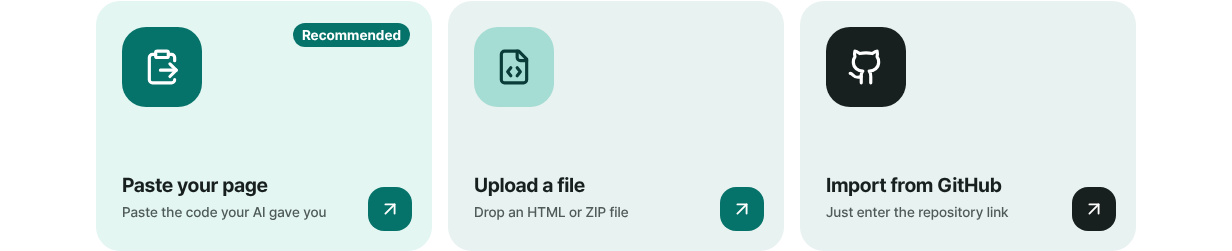
Paste the AI-made link page into the “Paste your page” card. - 4
Pick a short address and put it in your profile
Under “Your address”, type a short name you'll remember: lowercase letters, numbers and hyphens, at least 3 characters. When “Available” shows, press Publish. On the “Published” screen, use “Copy link” and paste it into the website field of your Instagram, YouTube or TikTok profile. Choose a name you'll keep for good, so the link you've already shared never has to change.
myname.html2site.com LiveThis goes in your profile's link field. The shorter, the better it fits on a business card.
- 5
Fix the card people see when you send the link
Press “Edit” on the “Published” screen, then open “Site settings” and the “Search & sharing” tab. Fill in the three fields and the “This is how your link looks when shared” preview updates right away. Changes save automatically. An image you just uploaded is a draft file, so press Publish once more for it to show on the real card. One catch: if the page code already has its own title tag, that title is used instead of “Title in search results”. To change the title on the shared card, edit the title in the page code.
Site settings › Search & sharingTitle in search results Name · what you do (e.g. Name · Illustrator)One-line description Who you help and how, in one sentenceLink preview image 1200×630 recommended, under 2MBThis is how your link looks when shared A live preview of the card
Frequently asked questions
Do I need a server, GitHub, or a hosting account to publish a link page?
No. Paste, choose an address, and it's live for free. You sign up with just an email, and free accounts get 5 sites. Free sites carry a small “Made with HTMLtoSITE” badge in a corner. Removing the badge and connecting your own domain start with Plus.
How is this different from a dedicated link-in-bio service?
Dedicated services give you a fixed template to pick from. Here you describe the design to an AI and put the finished code on your own address. The trade-off: to change a link you edit the text in the editor, or get new code from the AI and use “Paste new version”. Because it's your own file, you can also move it elsewhere later.
Can I count how many times my links were clicked?
Yes. Open “Visit analytics” in the editor to see the total “Button clicks”. The per-button ranking, “Most-clicked buttons”, appears from Plus. It groups clicks by the text on each button, so give every button different text. Only counts are recorded, nothing that identifies a visitor.
I shared the link but the preview card didn't change.
Messaging apps tend to remember a preview they've already read for a while, and it varies by app. First check the title, description and image in the “Search & sharing” preview. If you just uploaded a new image, confirm you pressed Publish afterwards.
How do I change my buttons later, or add a profile photo?
Edit the button lines in the editor's “Files” tab and press Publish, or tell the AI “add one more button and send the full code again” and use “Paste new version”. The address stays the same. For a photo, put it in the same folder as index.html, upload the folder as a ZIP and ask the AI to load that photo.
Can I put this link on a business card or poster?
Yes. In “Share” inside the editor, press “Download QR” to get a QR code that points to your address. It only appears once the site is published, so publish first.
Read next
- Copy-paste prompts: make a one-page website with ChatGPT or Claude A bookmarkable prompt pack for ChatGPT, Claude, Gemini and other AI tools: one base prompt, 12 page-type prompts, follow-up fixes, and how to publish the single HTML file free (English)
- Put an HTML file you already have on a real address Step-by-step guide to putting an existing HTML file online at your own address, free, with no server, GitHub, or hosting account (English)
- Start on a free address, add your own domain later How to start on a free address and add your own domain later: which one you need, buying a domain separately, connecting from Plus, two DNS values, waiting for DNS, automatic HTTPS (English)
- 15 things to check before you send a website link (30 seconds each) A 15-point checklist to run before sharing a one-page or small HTML site: phone view, links, file paths, title, description and share image, unknown addresses, search, secret keys, versions (English)
Trying it is faster than reading about it — paste your HTML and publish it in a minute.