
How to publish what Gemini built as a real website
Last updated: 2026-11-11
Short answer — copy the code Gemini gave you, paste it with “Paste your page” on the first screen of HTMLtoSITE, pick an address and press “Publish”. In about two minutes you have a live link on html2site.com, free, with no server and no card.
At a glance
- Time needed
- About 2 min
- Plan required
- Free plan
- Coding knowledge
- None
- Where to do it
- The upload cards on the home page
Step by step
- 1
Ask Gemini for the page
Describe the page you want in plain words. Add “as a single HTML file” so the design (CSS) comes in the same file, which makes the next step easy. When the answer appears, press the copy button on the code block once.
Gemini
Build an intro page for my neighbourhood café as a single HTML file. Include a menu, opening hours, and a booking button.index.html Copy<header class="hero"> <h1>…</h1></header><section id="menu">…</section> - 2
Paste it into HTMLtoSITE
On the first screen of htmltosite.com press “Paste your page”: what you just copied is pasted and a live preview opens right there (Ctrl+V anywhere on the page works too). If Gemini gave you a file instead, save it as index.html and use “Upload a file”. A ZIP works as well.
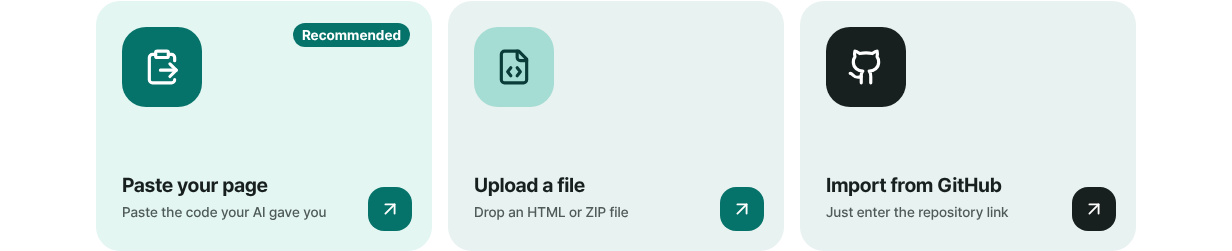
The three ways to start on the first screen. Pasting is the recommended one. - 3
Choose your address and press “Publish”
Under “Your address”, type the name you want (it is sometimes filled in from your page title). When “Available” shows up, press “Publish”. The first time, you sign up with just your email, no password, and publishing carries on by itself. A malware check runs before the page goes live, and free sites carry a small “Made with HTMLtoSITE” badge in a corner.
myname.html2site.com LiveOnce published, the page opens at this address and stays there until you delete it.
- 4
Next time, update the same address
Ask Gemini for the change, copy the new code, then choose “Paste new version” from the editor's “More” menu. The same link updates right away. To tweak a few lines yourself, open the “Files” tab in the editor, edit the code and press “Publish”.
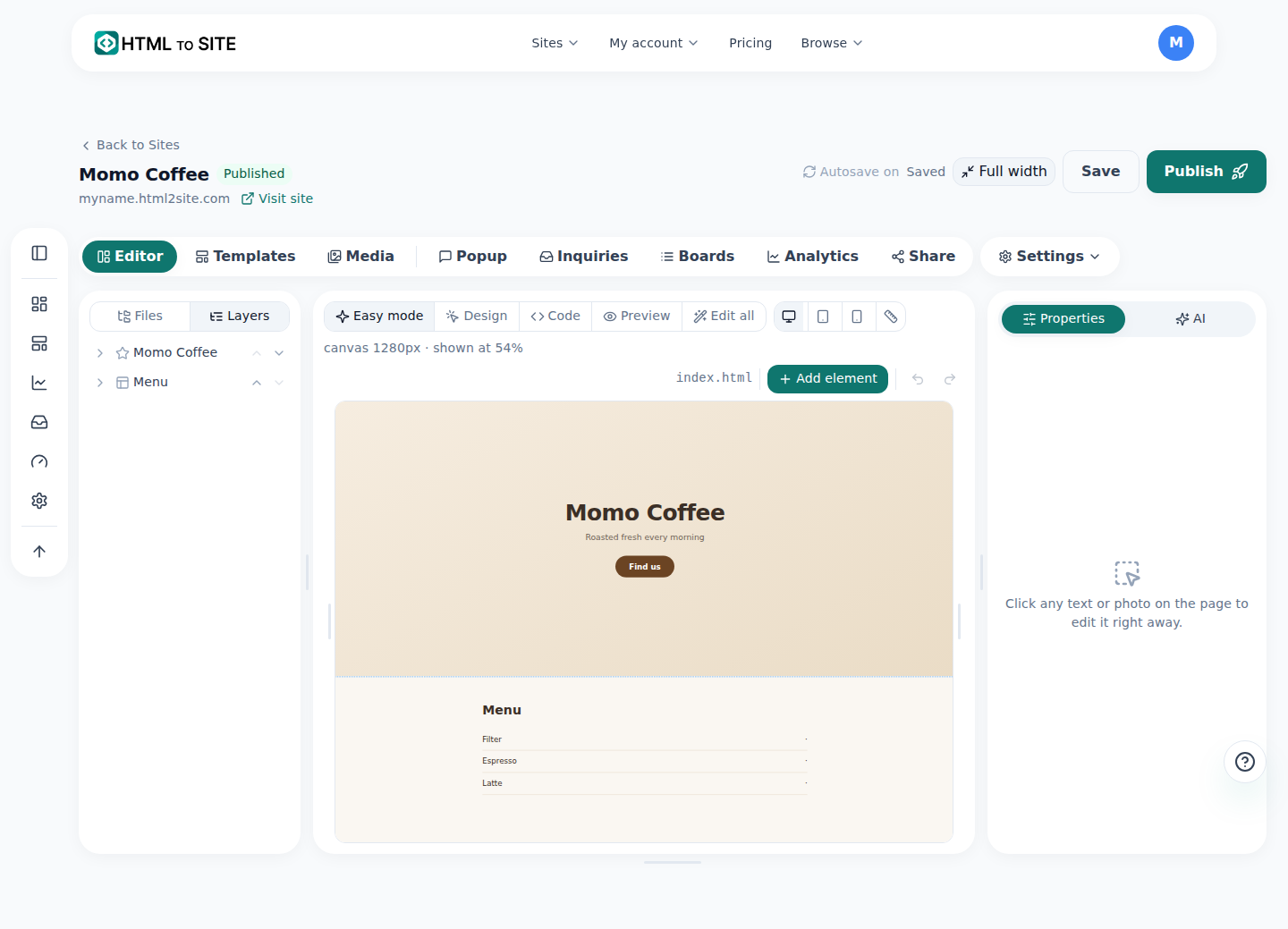
After editing, press “Publish” and the change lands on the same address.
Frequently asked questions
Is it really free to publish HTML from Gemini?
Yes. The free plan has no time limit and needs no card. It includes up to 5 sites and 100 MB. Free sites show one small “Made with HTMLtoSITE” badge in a corner, and from Plus you can remove it.
Do I need a server, GitHub or a hosting account?
No. Paste the code and press publish. All you need to sign up is an email address. There is no server to rent, no repository to create and no build to run.
How is this different from the share link inside Gemini?
A share link stays on Gemini's own site. HTMLtoSITE opens your page as a standalone website at your own address on html2site.com, and you can publish new versions to that same address. Your own domain can be connected from Plus.
Will the code Gemini wrote work as it is?
Usually, yes. Pages made of HTML, CSS and JavaScript open as they are, Tailwind and web fonts included. The small preview before publishing is a restricted window for safety, so inline scripts or outside images may not show there. Check the published address and fix anything in the editor. Code that needs a server (PHP, Node) does not run.
What if Gemini gave me several files or a ZIP?
Press “Upload a file” on the first screen and choose the ZIP. The index.html in the top folder becomes the first page and everything else keeps its folder structure. You can also add files one by one in the “Files” tab of the editor.
Can I skip copy-paste and publish straight from Gemini?
If Gemini lets you add an MCP server address and a token, it connects the same way. See the guide “Publish straight from your AI tool (MCP)”. Without that option, copy-paste is the fastest route, and it takes seconds.
Read next
- How to publish what ChatGPT built as a real website Step-by-step guide to publish the HTML page built in ChatGPT at your own free address on html2site.com by pasting it, with no server, GitHub or hosting account (English)
- How to publish what Claude built as a real website Step-by-step guide to publish the HTML page built in Claude at your own free address on html2site.com by pasting it, with no server, GitHub or hosting account (English)
- Put an HTML file you already have on a real address Step-by-step guide to putting an existing HTML file online at your own address, free, with no server, GitHub, or hosting account (English)
- How to connect your own domain to your site Step-by-step guide to connect your own domain to a published HTML site: enter the address, add the CNAME and TXT values at your domain provider, wait for Connected, HTTPS automatic (from Plus)
Trying it is faster than reading about it — paste your HTML and publish it in a minute.