
How to publish what DeepSeek built as a live website
Last updated: 2026-11-11
Short answer — copy the code block from DeepSeek, paste it into “Paste your page” on the htmltosite.com home screen, pick an address and press “Publish”. No server, no GitHub, no card: it's live on your own link in a minute or two.
At a glance
- Time needed
- About 2 min
- Plan required
- Free plan
- Coding knowledge
- None
- Where to do it
- The upload cards on the home page
Step by step
- 1
Ask DeepSeek for the page
Describe the page you want and add “as a single HTML file” so the styling and scripts come in one piece. Copy only the code block — the text around it is explanation, not part of the page. Then hit the copy button on the code block and you're ready.
DeepSeek
Build an intro page for my café as a single HTML file. Include the menu and opening hours.index.html Copy<!DOCTYPE html><html lang="en"><title>Momo Coffee</title><style> … </style> - 2
Paste it on the HTMLtoSITE home screen
On the first screen, press “Paste your page” and hit Ctrl+V (⌘V on Mac). The preview appears right away, no signup. If you saved the code as a file, use “Upload a file” and choose index.html — same next screen.
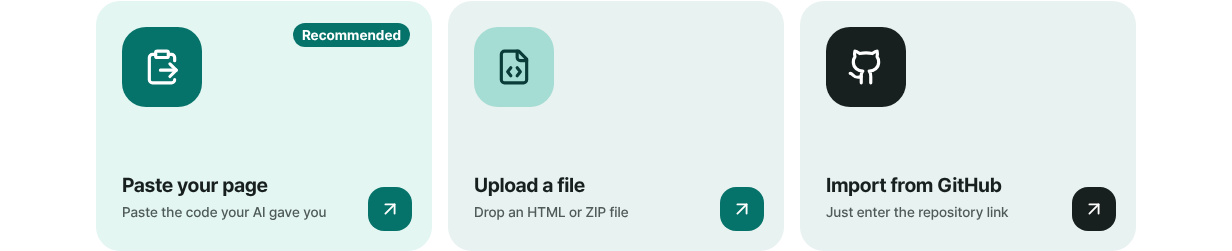
Pasting is the fastest way in. - 3
Pick an address and press “Publish”
Under “Your address”, type a name in the address box — lowercase letters, digits and hyphens — and wait for “Available”. Press “Publish”: the code is scanned for malware and goes live. First time, you sign up with just an email, no password, and publishing carries on. Free sites carry a small “Made with HTMLtoSITE” badge in the corner.
myname.html2site.com LiveLive on this address right after you publish. Free sites show a small “Made with HTMLtoSITE” badge in the corner.
- 4
Next time, update the same address
Ask DeepSeek for the changes, open your site, then choose “Paste new version” under “More” in the editor — the same address updates right away. For small tweaks, edit the files in “Edit” and press “Publish”.
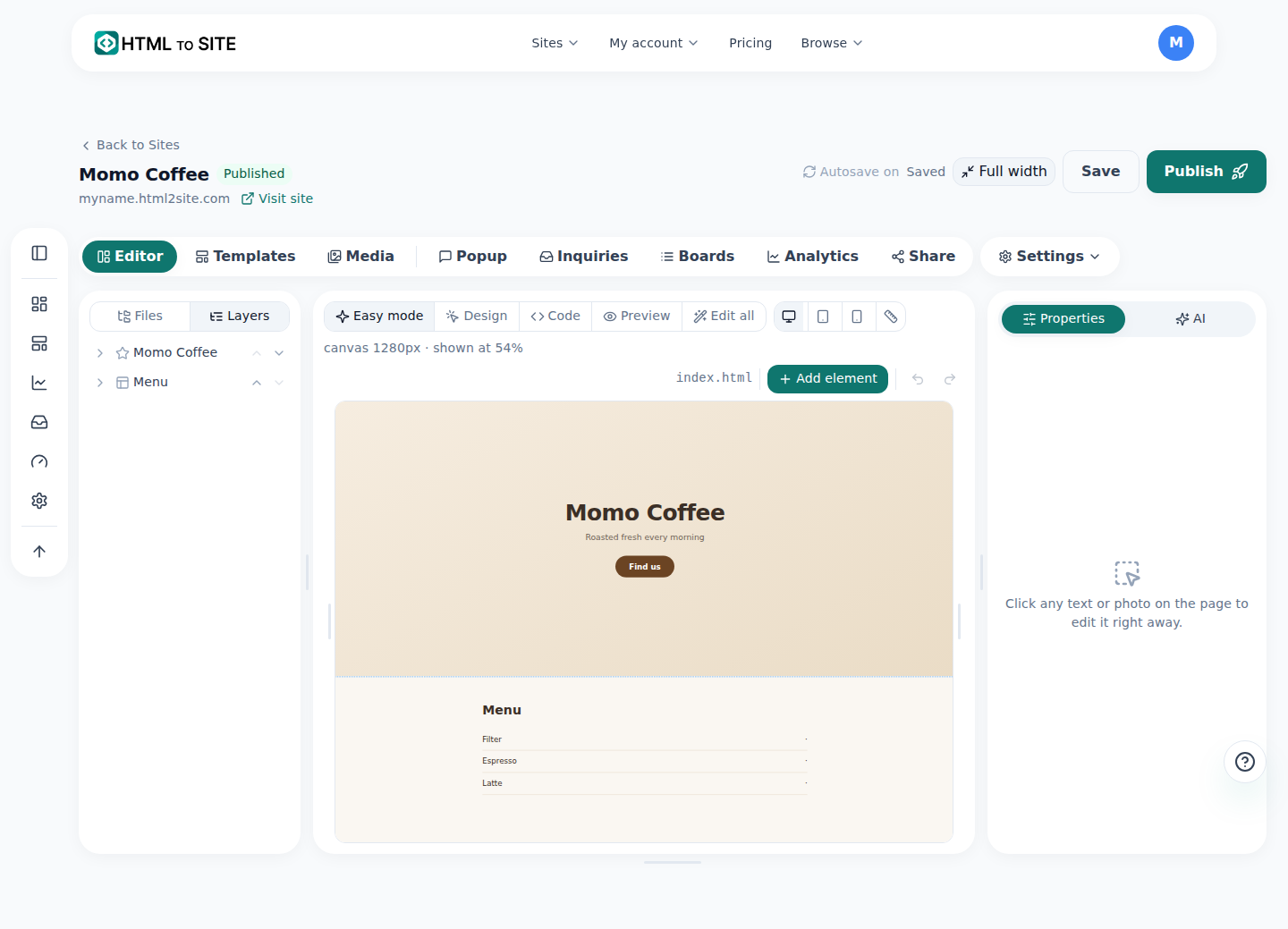
Edit files here, or paste a whole new version.
Frequently asked questions
Do I need a server, GitHub or a hosting account?
No. Paste the code DeepSeek gave you and publish — that's it. No server setup, no repository, no hosting contract; you just sign up with an email (no password). “Import from GitHub” is only for sites you already keep there.
How is this different from the DeepSeek share link?
A share link from DeepSeek opens inside the DeepSeek site, on its address. HTMLtoSITE serves your page from your own address (myname.html2site.com), and from Plus you can use your own domain. Use it when you need a link you'll keep putting on cards, bios or storefronts.
Is it really free?
Yes. Up to 5 sites and 100 MB, with no time limit and no card. Free sites show a small “Made with HTMLtoSITE” badge in the corner; it goes away from Plus.
Will the code from DeepSeek work as-is? What if it's several files?
Yes, what you paste becomes the page. The preview you see after pasting can leave out some scripts and external images, so check the final result at your published address. If you have separate CSS, JS or images, zip the folder and choose it under “Upload a file” — index.html in the top folder becomes the first page.
Can I use my own domain?
Yes, from Plus. Start on a free myname.html2site.com address and connect your domain later under “Address & domain” in the editor's “Settings”. Your site carries over unchanged.
Can I skip the copy and paste?
AI tools that connect through MCP (such as Claude or Cursor) can publish the HTML from a chat directly — see “Publish straight from your AI tool (MCP)”. Whether DeepSeek can connect that way varies by tool; one copy and one paste always works.
Read next
- How to publish what ChatGPT built as a real website Step-by-step guide to publish the HTML page built in ChatGPT at your own free address on html2site.com by pasting it, with no server, GitHub or hosting account (English)
- How to publish what Qwen built as a live website Step-by-step guide to publishing the HTML you built with Qwen as a free live website on your own address, no server needed (English)
- Put an HTML file you already have on a real address Step-by-step guide to putting an existing HTML file online at your own address, free, with no server, GitHub, or hosting account (English)
- How to connect your own domain to your site Step-by-step guide to connect your own domain to a published HTML site: enter the address, add the CNAME and TXT values at your domain provider, wait for Connected, HTTPS automatic (from Plus)
Trying it is faster than reading about it — paste your HTML and publish it in a minute.