
Restoring an old version — publishes, backups, and rollback
Last updated: 2026-08-10
Short version — pick a point in time from the editor's Versions tab and click Restore, and only your current draft changes to match it; visitors keep seeing the live site until you publish. The restore itself can be undone once with Undo rollback, so an accidental restore isn't permanent.
At a glance
- Time needed
- About 1 min
- Plan required
- Free plan
- Coding knowledge
- None
- Where to do it
- Editor
Step by step
- 1
See your version list — publishes, manual backups, and auto-daily, kept separate
Open “Versions” under the editor's Settings menu and you'll see every version kept for Momo Coffee, one row per line. Three kinds show up: “Publish” (saved automatically every time you publish), “Manual” (created when you click “Back up now”), and “Auto daily” (one automatic snapshot per day). On top of those, an “Auto rolling” version — a single copy of your most recent save — exists on every plan, free included. Manual backups are a paid-plan feature, so a free-plan site won't see any in the list.
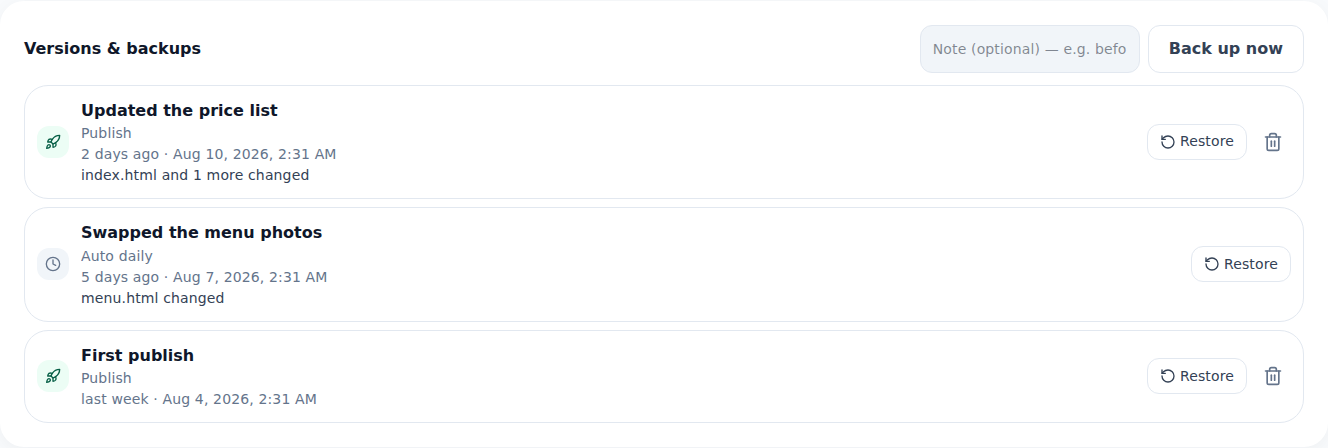
Every publish adds a row. Rolling back is one click from here. - 2
Restore an old version
Find the point in time you want in the list and click “Restore.” A confirmation dialog appears first; confirm again and that version becomes your current draft. Restoring only touches the draft — visitors keep seeing whatever is live until you click “Publish” to push the restored content out. If you had unsaved work in progress, that gets overwritten by the version you restored.
Settings › Versions › RestoreRestore this version? Aug 8, 11:05 AM (Manual · before redesign)Gets overwritten Your current draftGoes live Only after you click Publish - 3
A restore can be undone too — one step back
Changed your mind right after restoring? No problem — the “Undo rollback” button in the Versions panel puts your draft back to exactly how it was right before the restore. This undo only goes one step: once you save or edit again after restoring, “Undo rollback” stops being available. So the safest move is to check the result right away and hit “Undo rollback” immediately if it's not what you wanted.
Settings › Versions › Undo rollbackUndo rollback Back to right before the restoreApplies to Only the most recent restoreSave or edit again Undo rollback disappears - 4
The version currently live is never cleaned up automatically
Old versions get cleaned up automatically once a plan's retention limit is exceeded, oldest first. The version currently serving your visitors is always excluded from that cleanup — cleanup can never delete the snapshot your site is actually running on, so a cleanup pass can't break your live site. Retention limits themselves vary by plan, and higher plans keep more versions for longer.
Settings › VersionsCurrently serving Aug 9, 2:20 PM (Publish) · protectedCleanup target Excluded — the live version is always protectedRetention Varies by plan · higher plans keep more
Frequently asked questions
Does the free plan keep any version history?
Yes — it automatically keeps the most recent save and the last 3 days of daily versions. Manual backups are a paid-plan feature though.
If I restore an old version, do I lose what I'm working on right now?
Your current draft gets overwritten by that version. But the restore itself can be undone once, so it's not a one-way trip.
Could the version visitors are currently seeing get cleaned up automatically?
No — whatever's live right now is always excluded from cleanup.
How many versions get kept?
It depends on your plan. Higher plans keep more.
Can I restore more than once?
Yes — pick any version that's still available and restore to that point again.
Read next
- The editor's AI edit assistant: describe it, and it edits the code How the editor's AI edit assistant works — describe changes in plain language, click to point, publish to go live, and how revert really works (English)
- Managing your sites — folders, rename, delete & recovery How to organize sites into folders, rename them, and undo a deletion within 7 days from the /sites dashboard (English)
- Audit log — see who changed what, and when How to check your account's audit log at /audit and export it as CSV — personal logs are free on every plan, team logs need Team or Ultra (English)
- Adding multiple pages to your site How to add multiple HTML pages (files) to a site, and what's different between the free and Starter plans (English)
Trying it is faster than reading about it — paste your HTML now.