
Transfer ownership — hand a site to another person or team
Last updated: 2026-08-10
Short version — transferring a site to another person runs through a sender code, a recipient consent code, and a final sender approval, and once approved you get a 24-hour window to undo it. Moving a site between a team and a personal account is instant with just the team owner's email code, and a transfer gets blocked outright if the recipient's plan can't support the site's features.
At a glance
- Time needed
- About 10 min
- Plan required
- Free plan
- Coding knowledge
- None
- Where to do it
- Account
Step by step
- 1
Start the transfer and confirm your code
From the /sites dashboard, click a card's transfer icon to open the site transfer center at /transfer — there's no separate menu entry for it, only that card. Pick “Transfer to another user,” enter the recipient's email, and click “Start transfer”; a verification code goes to the sender's (the current owner's) email. Say Momo Coffee just got a new owner — enter their email and the process starts. The code is valid for 10 minutes, and getting it wrong more than 5 times means requesting a new one.
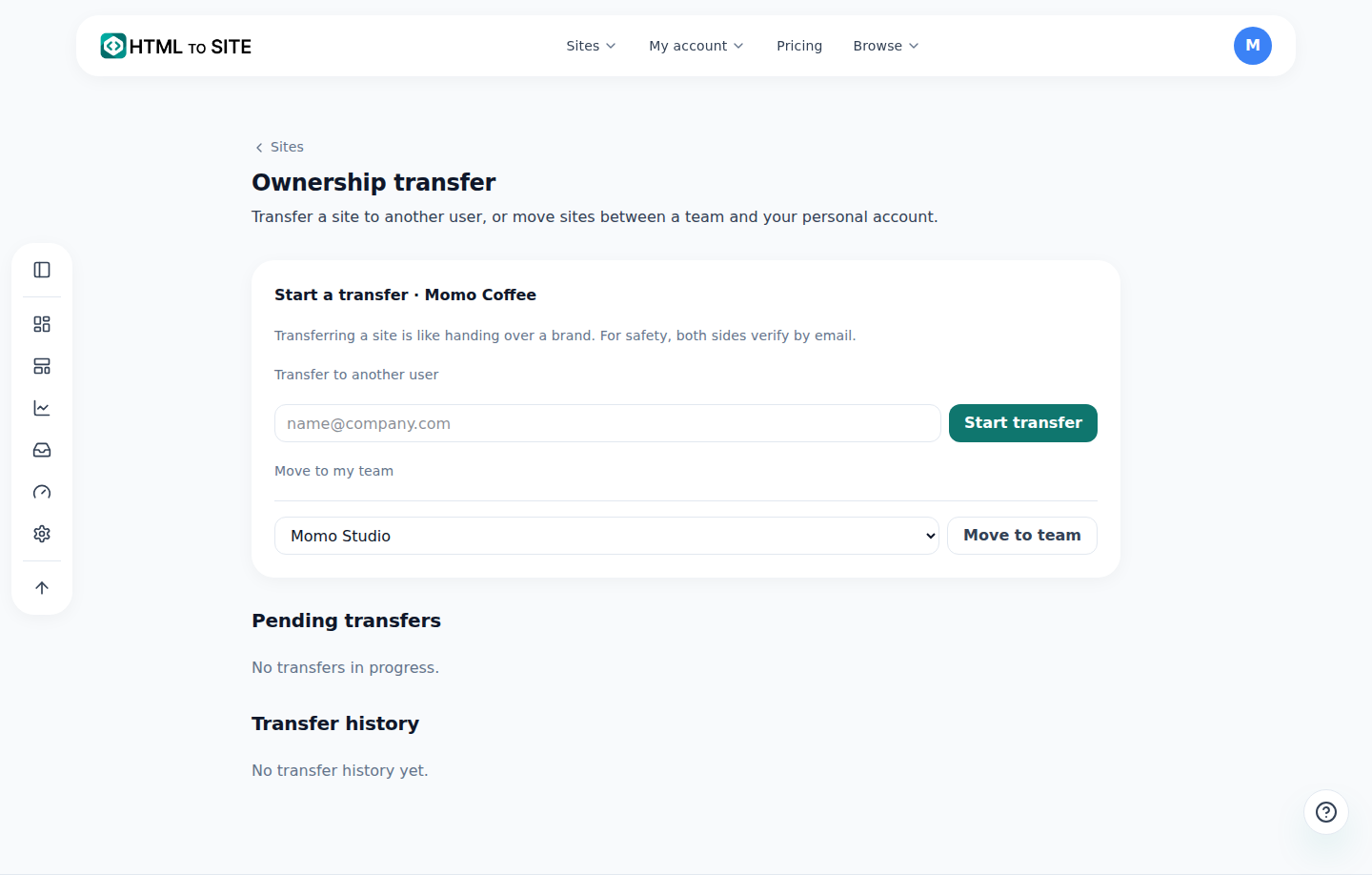
Sent and received are separate lists, so it's clear which stage you're at. - 2
The recipient confirms their consent code
Once the sender verifies, the recipient gets notified and sees the request under “Incoming transfer requests.” Clicking “Get verification code” sends a code to the recipient's own email, and entering it records their consent — ownership hasn't actually changed yet at this point. Only after that consent does the final-approval email go out to the sender.
Ownership transfer › Incoming request · Momo CoffeeFrom name@company.comStatus Awaiting recipientConsent code Sent by email · confirming records consent - 3
24 hours after final approval, it can still be undone
Once the recipient consents, a one-time final-approval link goes to the sender's email. The moment that link is clicked (or approved directly in the app), a 24-hour cooling-off window starts — during it, the sender can cancel in-app with an emailed code, or use the one-click rollback link in the email. Ownership actually changes hands once that window ends, or the instant the recipient clicks “Receive now” to finalize early with both sides confirmed. That 24-hour window only applies to transfers to another person — moving a site between a team and a personal account within the same account is instant, confirmed by nothing more than the team owner's emailed code, with no cooling-off at all.
Ownership transfer › Final approval · Momo CoffeeStatus Settling (finalizes in 24h)Time left 18 hours leftCancel In-app with a code · one-click via email linkReceive now Recipient can finalize instantly - 4
If the recipient's plan can't support it, the transfer is blocked
Right as ownership is about to change, the recipient's plan gets checked again — not just site, storage, and custom domain limits, but the actual features the site uses: multiple pages, page locks, the number of inquiry forms, and file types beyond images and fonts. If Momo Coffee's site has a page lock turned on and the recipient's plan doesn't support page locks, the transfer is blocked outright. If the recipient's usage changed enough during the 24-hour window to go over a limit, the transfer is cancelled instead of finalized, for the same reason.
Ownership transfer › Admission check · Momo CoffeeMultiple pages Rejected if recipient's plan lacks itPage lock Rejected if recipient's plan lacks itInquiry form count Rejected if over recipient's plan limitFile types Non-image/font files rejected by plan
Frequently asked questions
Does approving a transfer hand over the site right away?
Not for transfers to another person — after final approval there's a 24-hour cooling-off window, and you can still undo it during that time.
Does moving a site between a team and a personal account also take 24 hours?
No, that's instant — it only needs the team owner to confirm an emailed code.
If the recipient is on the free plan, can they still receive a multi-page site?
No — if the recipient's plan can't support the features the site uses, the transfer gets rejected.
Can a transfer be undone?
Yes, for a transfer to another person: you have 24 hours after final approval to roll it back.
Does a transfer require email verification from both sides?
Yes — both the sender and the recipient confirm a code sent to their email.
Read next
- Managing your sites — folders, rename, delete & recovery How to organize sites into folders, rename them, and undo a deletion within 7 days from the /sites dashboard (English)
- Create a team and invite members to manage a site together How to create a team, invite members with roles, and understand resource allocation and seat limits (English)
- Account settings: what you can change here, and what you can't What you can actually change on /settings and /profile, and what only lives in the SSO account (English)
- Audit log — see who changed what, and when How to check your account's audit log at /audit and export it as CSV — personal logs are free on every plan, team logs need Team or Ultra (English)
Trying it is faster than reading about it — paste your HTML now.