
Create a team and invite members to manage a site together
Last updated: 2026-08-10
Short version — on the Team or Ultra plan, create a team on the Team page (/team) and invite members with one of four roles (Owner, Admin, Editor, Viewer). The sites, storage, and domains you allocate to a team aren't extra resources — they're carved out of your own plan's total limit, so your personal share shrinks by exactly what you give the team.
At a glance
- Time needed
- About 5 min
- Plan required
- Team
- Coding knowledge
- None
- Where to do it
- Account
Step by step
- 1
Create a team — Team and Ultra plans only
The Team page (/team) is visible on every plan, but actually creating a team and using member seats is a Team/Ultra feature. On Free, Starter, or Advanced, the page shows an upgrade prompt instead, and the Create team button only becomes active once you're on Team or Ultra. Say Momo Coffee's owner upgrades to Ultra and creates a team called Momo Coffee.
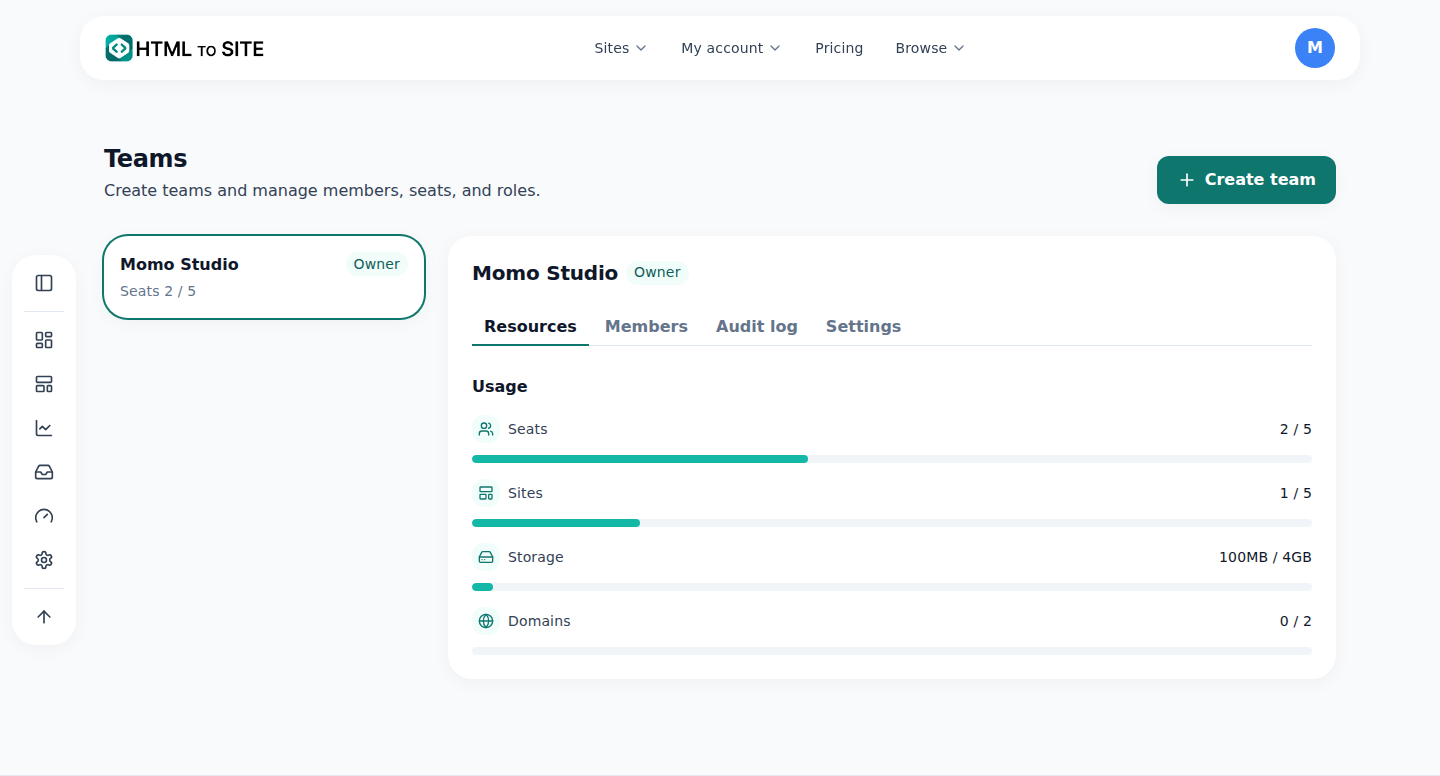
Creating a team carves part of your plan's limits out for that team. - 2
Invite members and set their roles
Once a team exists, invite people by email from the Members tab. Roles run Owner > Admin > Editor > Viewer — the Owner is fixed to whoever created the team, and Owner/Admin can change everyone else's role. Admins manage invites, removals, and resource allocation; Editors can edit and publish team sites; Viewers can only look. Momo Coffee's owner invites two staff members as Editors to share site management.
Team › MembersMe (Momo Coffee) OwnerStaff 1 Invited as EditorStaff 2 Invited as EditorSeats used 3 / 5 - 3
Resources are carved out of your plan — not added on top
This is the part people get wrong most often. The sites, storage, and domains you allocate to a team aren't extra resources from somewhere else — they're a share of your own (the owner's) plan total. So your personal share is always “plan total minus what you've given the team.” To make this concrete: say your plan's site limit is 30 total. The moment you allocate 10 to the Momo Coffee team, your personal share drops to 20. Storage and domains work the exact same way.
Team › Resources (example numbers)Sites (30 total) Team 10 · Personal 20Storage (20GB total) Team 5GB · Personal 15GBCustom domains (5 total) Team 2 · Personal 3 - 4
Seats — how many members you can invite — are capped separately
Sites, storage, and domains are a pie you slice, as you just saw. Seats — how many members a team can hold — aren't part of that pie at all; they're a separate cap. The default is 5 and it varies by plan, and it's checked purely on member count, regardless of how much of the pie you've allocated. If Momo Coffee's team has 2 staff plus the owner, that's 3 of 5 seats used, independent of the resource split above.
Team › Resources › SeatsSeats used 3 / 5Seat limit 5 by default (varies by plan)Relation to resource allocation Separate — not part of the sites/storage/domains pie
Frequently asked questions
Can I create a team on the free plan?
No — team creation starts at the Team and Ultra plans. On Free, Starter, or Advanced, the Team page just shows an upgrade prompt.
If I allocate sites to a team, does my personal site count go up?
No. You're carving that amount out of your own plan's total limit, so your personal share drops by exactly what you allocate to the team — it's not a new resource from somewhere else.
How many role levels are there?
Four: Owner, Admin, Editor, and Viewer.
How many members can I invite?
5 by default, and it varies by plan. This limit is separate from resource allocation.
Can I see who did what on the team?
Yes — Team and Ultra plans include a team-scoped audit log.
Read next
- Audit log — see who changed what, and when How to check your account's audit log at /audit and export it as CSV — personal logs are free on every plan, team logs need Team or Ultra (English)
- Transfer ownership — hand a site to another person or team How to transfer site ownership to another person or team — verification codes, consent, and the 24-hour cooling-off window (English)
- Managing your sites — folders, rename, delete & recovery How to organize sites into folders, rename them, and undo a deletion within 7 days from the /sites dashboard (English)
- Check your billing history and request a refund How to check payment history on /billing and request a refund on YavePay within 24 hours of an unused payment (English)
Trying it is faster than reading about it — paste your HTML now.