
Managing your sites — folders, rename, delete & recovery
Last updated: 2026-08-10
Short version — organizing sites into folders or renaming them on the /sites dashboard never changes the published address. Clicking delete doesn't remove a site instantly either: it only proceeds after the owner confirms by email, and you still get 7 days to undo it after that.
At a glance
- Time needed
- About 2 min
- Plan required
- Free plan
- Coding knowledge
- None
- Where to do it
- My sites
Step by step
- 1
Group sites into folders once you have more than a couple
On the /sites list, click a site card's folder icon to open “Move to folder.” Type a new folder name or pick an existing one to move it in. A folder is just a label the screen uses to group sites — it doesn't touch storage or the site's path, so you can organize as many folders as you like without affecting any limit.
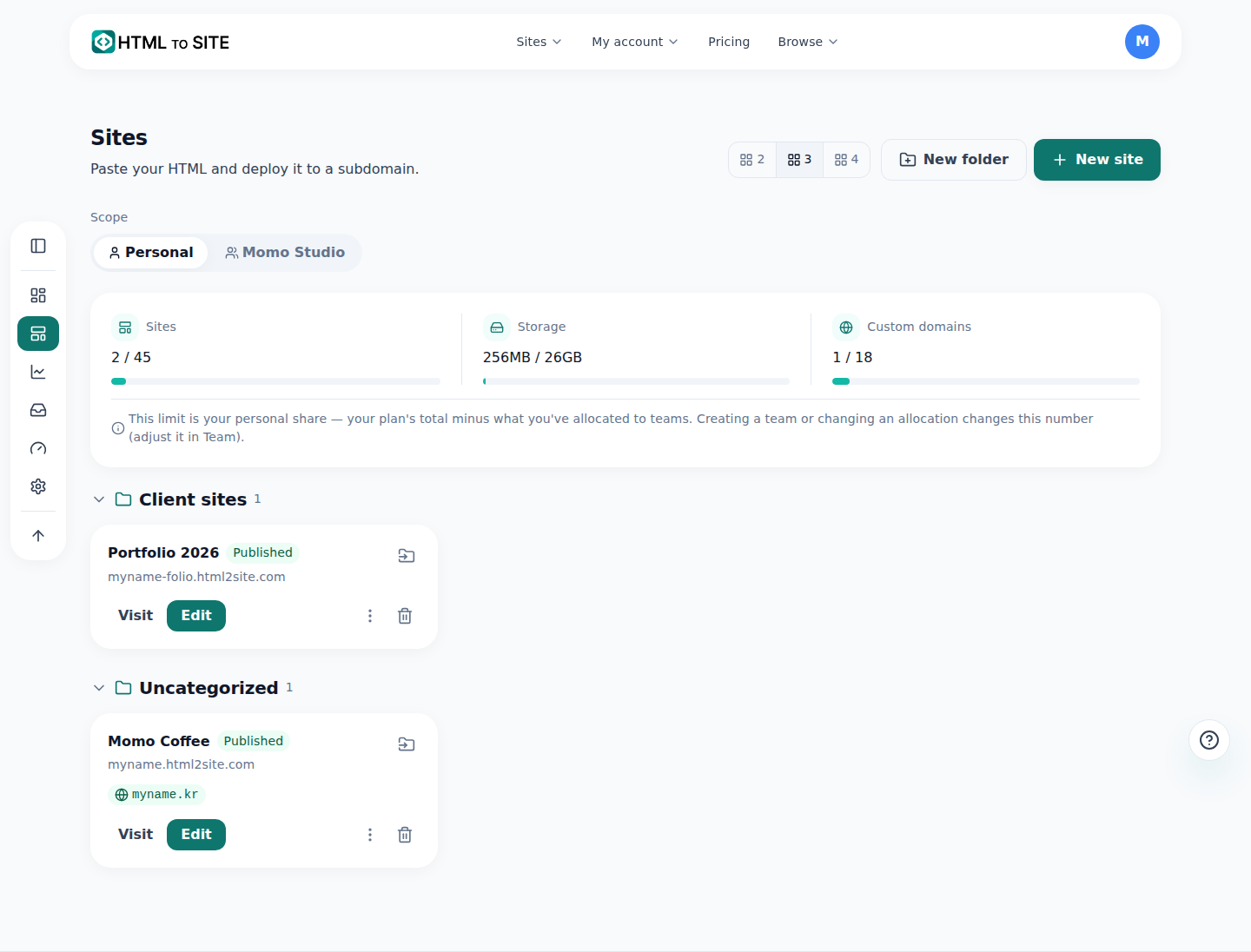
The actual My sites screen. Folders split the cards into groups like this. - 2
Rename a site — the published address doesn't change
Click “Rename” on a site card to change its name right away. That only updates the name shown in the list and the editor — the address visitors actually open never changes. Rename freely if the business name changed or you just want something clearer to scan at a glance.
Manage sites › RenamePrevious name Momo CoffeeSite name Momo Coffee (Sinchon branch)Address Unchanged (myname.html2site.com) - 3
Delete doesn't happen instantly — there's a 7-day undo window
Clicking “Delete” on a card doesn't remove the site that instant. A confirmation link goes to the owner's email, and deletion only starts once that link is clicked. Even after that, “Restore” on the card still works for 7 days — the site is only gone for good once that window passes.
Manage sites › RestoreDeletion status Awaiting confirmationNext step Owner clicks the link in their emailUndo window 7 days after confirmation - 4
Downgrading past your site limit parks sites — it doesn't delete them
If a plan downgrade puts you over your site-count limit, the extra sites aren't deleted — they're parked as “Dormant” instead. Sites you haven't touched recently get parked first, and switching on “Keep on downgrade” for a card exempts that site from parking. A dormant site can be brought back with “Restore” whenever there's a free slot, and upgrading again clears the parking automatically.
Manage sites › DormantStatus DormantKeep on downgrade Kept (click to unpin)Restore Instant, once a slot is free
Frequently asked questions
Does clicking delete remove the site right away?
No. Clicking delete doesn't remove it instantly. A confirmation link goes to the owner's email, and deletion only proceeds once that link is clicked. Even then, you still get 7 days to undo it, so an accidental click isn't final.
Does renaming a site change its address too?
No. Renaming only changes the name shown in the list and the editor. The published address (domain) stays exactly the same, so links you've already shared keep working.
Does splitting sites into folders split storage too?
No. A folder is just a label the screen uses to group sites — it has no effect on storage or a site's path. Create as many folders as you want to organize things.
I downgraded and a site disappeared — was it deleted?
No. It wasn't deleted — it's parked as “Dormant.” Sites you haven't used recently get parked first, and turning on “Keep on downgrade” for a specific site ahead of time keeps it out of the parking pool.
How many sites can I create?
The free plan allows 2. If you need more, upgrading raises that limit — check the pricing page (/pricing) for the exact number on each paid plan.
Read next
- Adding multiple pages to your site How to add multiple HTML pages (files) to a site, and what's different between the free and Starter plans (English)
- Restoring an old version — publishes, backups, and rollback How to restore an earlier published version from the editor's Versions tab, and undo a restore if needed (English)
- Transfer ownership — hand a site to another person or team How to transfer site ownership to another person or team — verification codes, consent, and the 24-hour cooling-off window (English)
- Connect your own domain — two DNS records, then it's automatic How to connect a domain you own to a published site and get HTTPS issued automatically (English)
Trying it is faster than reading about it — paste your HTML now.