
You asked Qwen for a website. Here's how to put it online.
Last updated: 2026-08-10
Short version — paste the HTML Qwen gave you into the box on htmltosite.com and press “Get my address”. Your site is live on a real URL in about 60 seconds. No server, no install, no credit card.
At a glance
- Time needed
- About 1 min
- Plan required
- Free plan
- Coding knowledge
- None
- Where to do it
- Paste box on the home page
Step by step
- 1
Ask Qwen for the page
Tell Qwen what page you want and it writes the HTML for you. Add “as a single HTML file” to the request so the styling ships in the same file — that turns the next step into one paste instead of several. Hit the copy button on the code block and you're ready to go.
Qwen
Build a landing page for my local pet cafe as a single HTML file, with visit info, a location section, and a booking button.index.html Copy<section class="hero"> <h1>…</h1></section> - 2
Paste it into HTMLtoSITE
Drop the code into the box on the homepage and a live preview appears right next to it — the real page, not a static image. No account needed yet, so judge it with your own eyes first. Any script written into the page sits idle in the preview and runs normally once you publish.
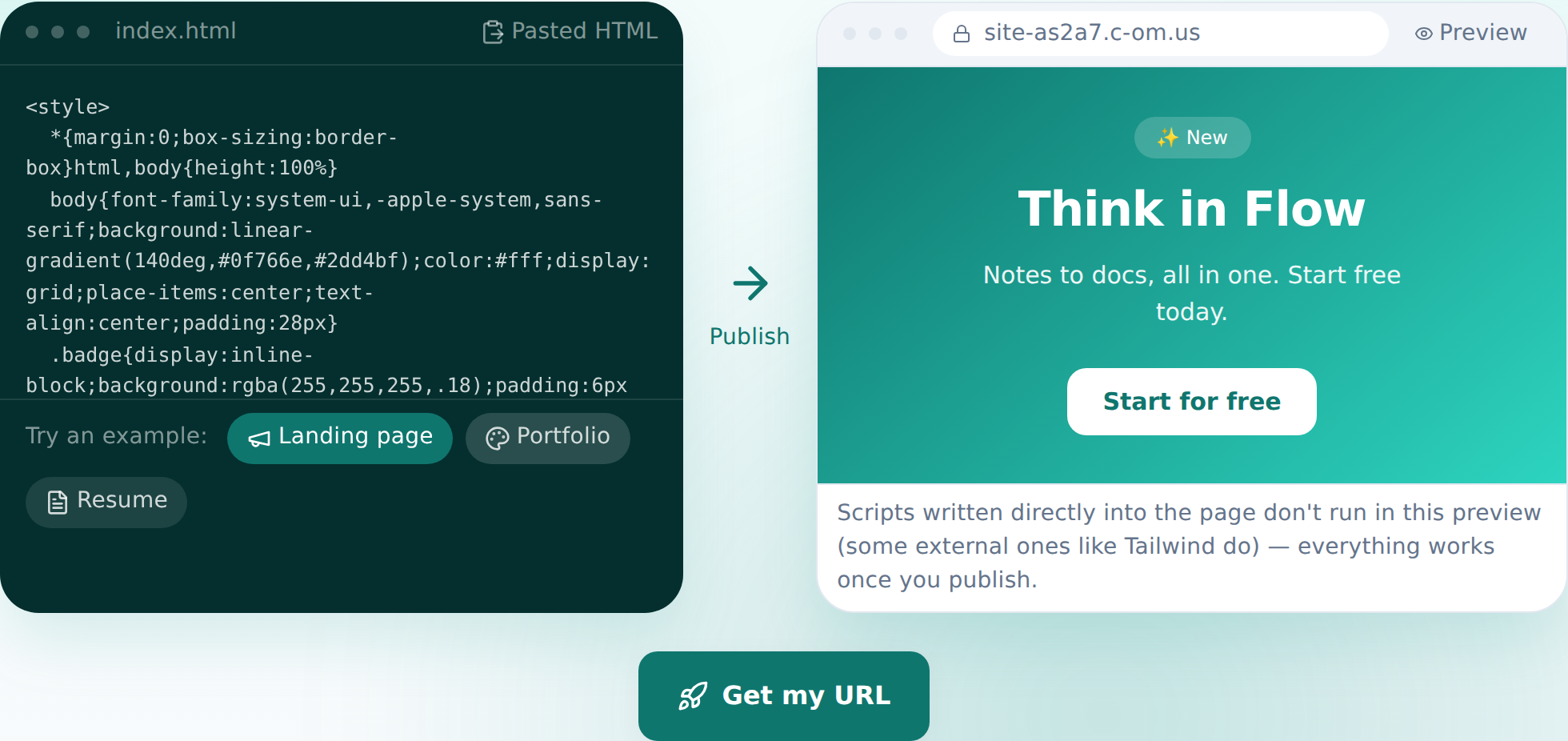
Paste it, and the preview shows up instantly — this is the real screen. - 3
Press “Get my address” and choose a name
Like what you see? Press the button, sign in once — your pasted code carries over — then pick a name for your address and publish. Your site is live on the internet right away. The free plan covers 2 sites, no credit card required.
myname.html2site.com LivePublishing gives you an address like this right away. Have a domain of your own? Connect it starting on Starter, with HTTPS handled automatically.
- 4
Next time, just describe the edit
No need to go back to Qwen for changes. Tell the editor what you want in plain language — the AI locates the right code, shows you the change before applying it, and can revert instantly if it's not what you wanted.
Edit assistantMake the booking button stand out more Updated 2 spots. I can revert if that's not right.
Frequently asked questions
Is it really free?
Yes. Up to 2 sites stay free with no credit card ever required. Free sites show a small “Made with HTMLtoSITE” badge, which disappears on Starter and above.
Does Qwen's code work as-is?
Yes. Whatever HTML you paste gets published exactly as written. Scripts on the page stay paused only in the pre-publish preview — once published, everything runs normally.
Can I build a multi-page site?
The free plan hosts one HTML file per site. Multiple files — sub-pages, image folders — become available on Starter.
Can I connect my own domain?
Yes. From Starter onward, connect a domain you already own and the HTTPS certificate is issued automatically. On the free plan you use the html2site.com address you're given.
Can I edit it without knowing code?
Yes. Just tell the editor what to change — “make the button bigger” — and the AI edits the code for you. You can also click an element to point at it, and every publish leaves a snapshot you can roll back to.
Read next
- You asked ChatGPT for a website. Here's how to put it online. Step-by-step guide to publishing ChatGPT-generated HTML on a real address in 60 seconds, no server needed (English)
- You asked DeepSeek for a website. Here's how to put it online. Step-by-step guide to publishing DeepSeek-generated HTML on a real address in 60 seconds, no server needed (English)
- You asked Claude for a website. Here's how to put it online. Step-by-step guide to publishing Claude-generated HTML on a real address in 60 seconds, no server needed (English)
- You already have an HTML file. Here's how to put it online. Step-by-step guide to publishing an existing HTML file on a real address in 60 seconds, no server needed (English)
Trying it is faster than reading about it — paste your HTML now.