
Make your site installable as an app (PWA)
Last updated: 2026-08-10
Short version — turn on “Make installable as an app” in the editor's Settings › App (install) tab (Team plan and up), and visitors can add your site to their phone's home screen like a native app. Installation is offered on your one primary address only, and turning the feature off later never removes apps visitors already installed.
At a glance
- Time needed
- About 3 min
- Plan required
- Team
- Coding knowledge
- None
- Where to do it
- Editor
Step by step
- 1
Turn on “Make installable as an app” — Team plan and up
Open a site in the editor and go to Settings › App (install) — there's a single toggle there. Switch it on, and from that moment visitors' browsers recognize the site as installable. On Free, Personal, and Advanced the toggle stays locked, showing only “Available on the Team plan and above.” — you need Team or higher to use it.
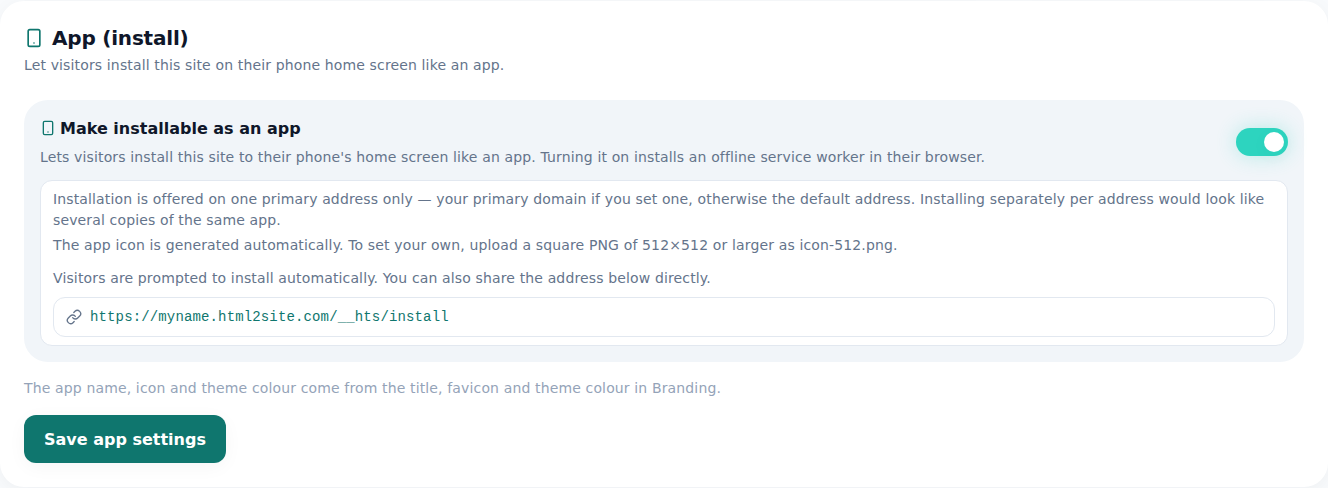
Turn it on and visitors get an install prompt in their browser. - 2
The icon is generated for you — or upload your own
The app icon isn't your favicon reused as-is — an installable app needs a size-checked image of its own. Leave it blank and one gets generated automatically; want your own instead, upload a square PNG of 512×512 or larger and that's what gets used.
Settings › App (install)Icon Auto-generatedTo set your own Square PNG, 512×512 or larger (icon-512.png) - 3
Installation is offered on one primary address only
A site can be reachable through a subdomain and several custom domains at once, but installing is only ever offered on the one address marked primary. Your primary custom domain wins if you've set one, otherwise the default address is primary. Every other address simply doesn't expose the install path at all — installing separately per address would make the same app look like several different ones to a visitor.
Settings › App (install)Installable address myname.html2site.com (primary)Other domains you own Install path not exposed - 4
Visitors still get a screen offline, thanks to a service worker
Turning this on also installs an offline service worker in the visitor's browser. So if their connection drops for a moment, they don't hit a blank screen — the already-cached screen still shows. It's what makes the first time someone opens the app feel solid rather than fragile.
Settings › App (install)Offline screen Shown automatically by the service workerIf the connection drops The already-installed screen still opens
Frequently asked questions
Does this work on the free plan?
No, it's Team plan and up. On Free, Personal, and Advanced, the toggle in Settings › App (install) stays locked, showing only “Available on the Team plan and above.”
If I have several domains, can visitors install from all of them?
No, installation is only offered on the one address you've marked primary. Your primary custom domain wins if you set one, otherwise the default address does — every other address simply doesn't expose the install path.
Can I set my own icon?
Yes — upload a square PNG of 512×512 or larger. Leave it blank and one gets generated for you automatically.
If I turn this off later, do apps people already installed disappear?
No, apps already installed keep working normally. Turning it off only blocks new installs.
Does the app still open when the visitor is offline?
Yes — a service worker shows an offline screen automatically.
Read next
- Adding multiple pages to your site How to add multiple HTML pages (files) to a site, and what's different between the free and Starter plans (English)
- Get your site found — by search engines and AI answers alike How to get a published site found by search engines and AI answers (AEO) — from Branding settings to structured data (English)
- Connect your own domain — two DNS records, then it's automatic How to connect a domain you own to a published site and get HTTPS issued automatically (English)
- How to check who's visiting your site How to read visitor analytics in the editor's Analytics tab — what each plan tier shows (English)
Trying it is faster than reading about it — paste your HTML now.