
Add a popup — announce news and events to visitors
Last updated: 2026-08-10
Short version — fill in a title and button text in the editor's Popup tab and save, and it's live for visitors immediately. The free plan locks the position to the center of the screen, but you can still choose when it shows (on load, after a delay, or on scroll) and how often (every time, once per visit, or once ever) regardless of plan.
At a glance
- Time needed
- About 3 min
- Plan required
- Free plan
- Coding knowledge
- None
- Where to do it
- Editor
Step by step
- 1
Write the popup content
Open the Popup tab in the editor's side menu, then the Content sub-tab. There are fields for a title, body text, and a button. For Momo Coffee, that might mean a title like "This week's new drink", button text "See the menu", and a link to the menu page. An image is optional too.
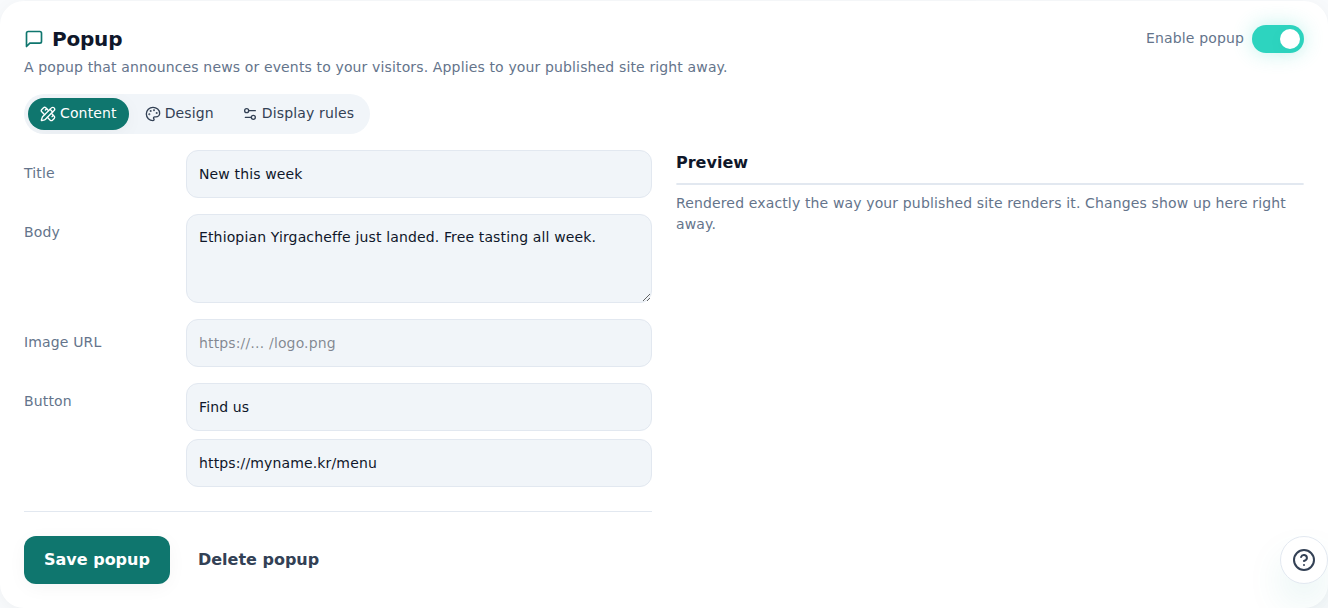
You set the copy and the timing in the same place. - 2
Pick the position and design (free plan stays centered)
The Design sub-tab covers the card background, button color, corner roundness, and entrance animation. Position lives in the Display rules sub-tab — on the free plan it's locked to the center of the screen, while corner and bottom placements open up on paid plans. That's intentional: it keeps the popup from overlapping the small badge shown on free sites.
Popup › Display rules · PositionPosition Center of screenBottom bar / bottom right Paid plans onlyNote Free plan is centered only, so it won't overlap the badge - 3
Set the display rules — when, and how often
In that same Display rules sub-tab, choose the trigger — right when the page opens, after a few seconds, or once someone scrolls — and how often it reappears: every time, once per visit, or just once ever. If regulars are seeing it too much, turn the frequency down.
Popup › Display rules · Trigger/FrequencyShow when After a few secondsShow again Once per visit - 4
Save, and it applies right away
Once everything's filled in, click Save popup — the moment you save, it applies to visitors exactly as configured. Flip the Enable popup switch off if you want to pause it, and you can always come back and edit the copy or design later.
Popup › ContentEnable popup OnSave Popup saved.
Frequently asked questions
Can I use a popup on the free plan?
Yes — the only limit is position: it's locked to the center of the screen. Corner and bottom placements are for paid plans.
Will the same visitor keep seeing the popup?
You control that with the frequency setting — every time, once per visit, or just once ever.
Why is the free plan's position locked to center?
So the popup doesn't overlap the small badge shown on free sites.
Does it apply across all my pages at once?
Yes, it applies site-wide.
Can I edit the popup text later?
Yes, you can go back and change it in the editor anytime.
Read next
- One form for visitor inquiries, one inbox for every site How to build a visitor inquiry form and check every site's inquiries from one unified inbox (English)
- How to check who's visiting your site How to read visitor analytics in the editor's Analytics tab — what each plan tier shows (English)
- Restrict access to one page (page lock) How to restrict access to a specific page with the editor's encryption tab — it's an access gate at serve time, not file encryption, available from Starter (English)
- Get your site found — by search engines and AI answers alike How to get a published site found by search engines and AI answers (AEO) — from Branding settings to structured data (English)
Trying it is faster than reading about it — paste your HTML now.