
Restrict access to one page (page lock)
Last updated: 2026-08-10
Short version — open “More → Encryption” in the editor, pick a page, and turn on a password, PIN, or magic link. Until a visitor authenticates, the page's content isn't even sent to their browser. Despite the tab's name, it doesn't encrypt the file at rest — it's an access gate, and it's available from the Starter plan.
At a glance
- Time needed
- About 2 min
- Plan required
- Starter
- Coding knowledge
- None
- Where to do it
- Editor
Step by step
- 1
Pick which page to lock
Open “More → Encryption” in the editor and choose a scope: the whole site, or one specific page. Say Momo Coffee has an unreleased menu-preview page it isn't ready to show everyone yet — pick “Specific page” and enter its path, and every other page stays open as-is. This feature is available from the Starter plan; on the free plan you'll see the lock notice but can't turn it on.
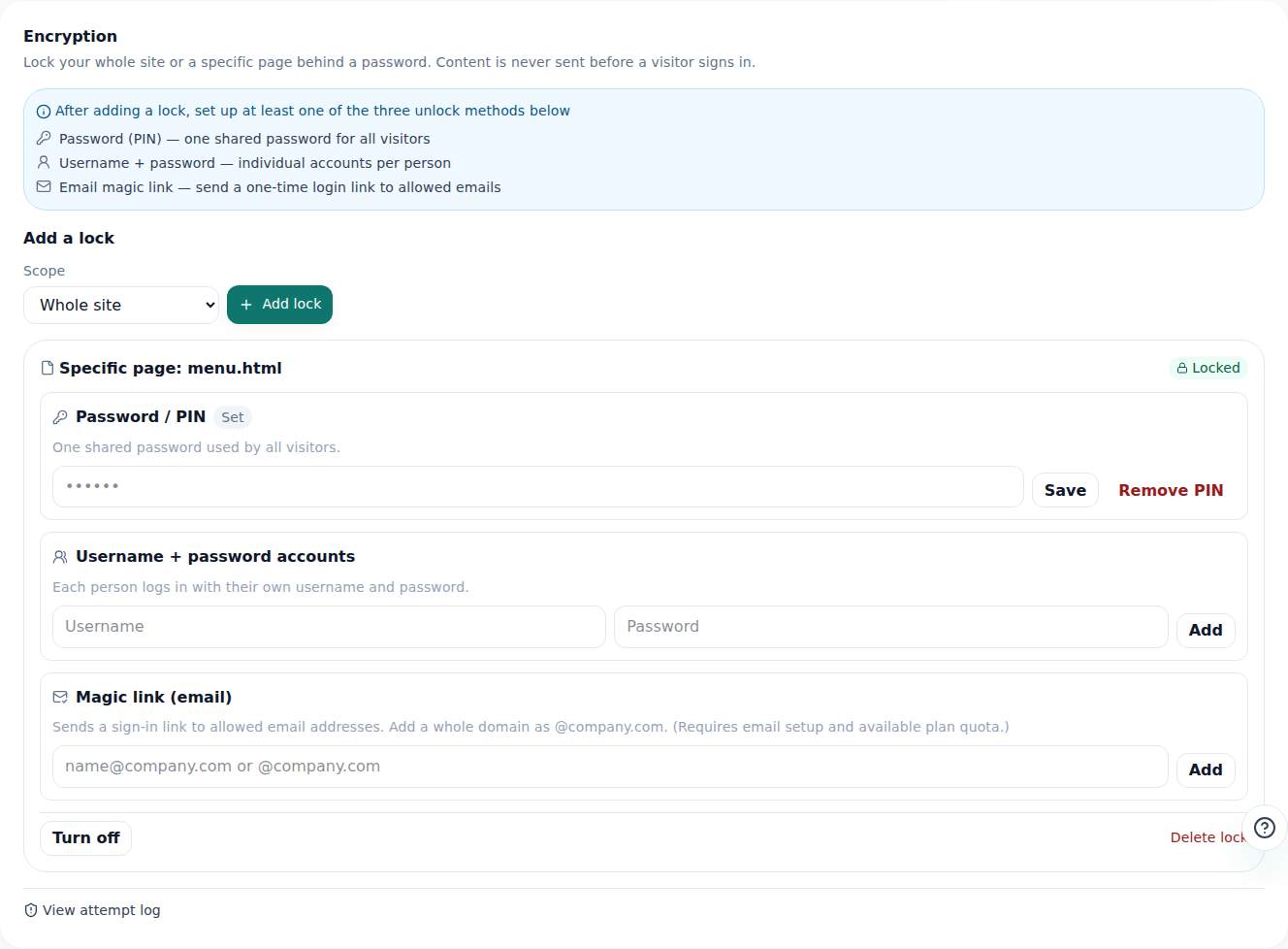
You can lock a single page instead of the whole site. - 2
Turn on one or more unlock methods
Mix and match: username + password (a separate account per person), a PIN (one shared password every visitor uses), or a magic link (a one-time sign-in link sent to an approved email). Turn on more than one and a visitor can pass with any of them — someone whose magic-link email never arrives can still get in with the PIN. You can't turn the lock on until at least one method is set, so you never end up with a page nobody can open.
More › Encryption · menu-preview.htmlUsername + password 1 account addedPIN SetMagic link — allowed emails team@ (whole domain allowed)Status On - 3
Too many wrong guesses locks it briefly
If the same visitor — really, the same IP — gets the password or PIN wrong too many times in a short window, further attempts are blocked for a while even with the right answer. That's brute-force protection. The block only applies to that one IP, so it never affects other visitors. The owner can review exactly what happened — failed attempts and magic-link requests from emails that weren't on the list — under “View attempt log.”
More › Encryption · Attempt logType Brute-force lockoutFailed attempts 10Lockout duration 15 minutesScope That IP only - 4
Authenticate, and it opens right then
The moment a visitor succeeds with any enabled method, they're sent straight to the page they were trying to reach. For a while after (on that same browser), they can keep viewing it without authenticating again. Search engines never see the address in the first place — locked pages are excluded from sitemap.xml.
myname.html2site.com/menu-preview.html LiveThis page only opens after authentication. Before that, requesting this address sends back no content at all.
Frequently asked questions
The tab is called “Encryption” — is the file actually stored encrypted?
No. It's stored exactly as-is. Before a visitor authenticates, its content simply isn't sent to them at all. It's really an access-restriction feature.
Can I use this on the free plan?
No, it's available from the Starter plan and up.
What happens if someone enters the wrong password too many times?
Too many wrong attempts in a short window locks further tries for a while. It only affects the IP that failed — other visitors aren't touched.
Could a locked page still show up in search results?
No, locked pages are excluded from the sitemap, so search engines never learn the address.
Can I lock different pages on the same site differently?
Yes, each page can have its own lock and its own settings.
Read next
- Adding multiple pages to your site How to add multiple HTML pages (files) to a site, and what's different between the free and Starter plans (English)
- Managing your sites — folders, rename, delete & recovery How to organize sites into folders, rename them, and undo a deletion within 7 days from the /sites dashboard (English)
- Create a team and invite members to manage a site together How to create a team, invite members with roles, and understand resource allocation and seat limits (English)
- Restoring an old version — publishes, backups, and rollback How to restore an earlier published version from the editor's Versions tab, and undo a restore if needed (English)
Trying it is faster than reading about it — paste your HTML now.