
One form for visitor inquiries, one inbox for every site
Last updated: 2026-08-10
Short version — build a form in the editor's Inquiries tab, drop it on a page, and every inquiry lands there with spam defenses already on. Running more than one site? /inquiries pulls them all into a single inbox.
At a glance
- Time needed
- About 5 min
- Plan required
- Free plan
- Coding knowledge
- None
- Where to do it
- Editor
Step by step
- 1
Build the inquiry form
Open the Inquiries tab in the editor's side menu and switch to the Form sub-tab to create a new form. Add fields like name, contact, and message, arrange them in any order, and mark which ones are required. Add a file field if you want attachments — uploads are stored privately and only readable from the inbox. How many forms you can build depends on your plan; the free plan starts at one.
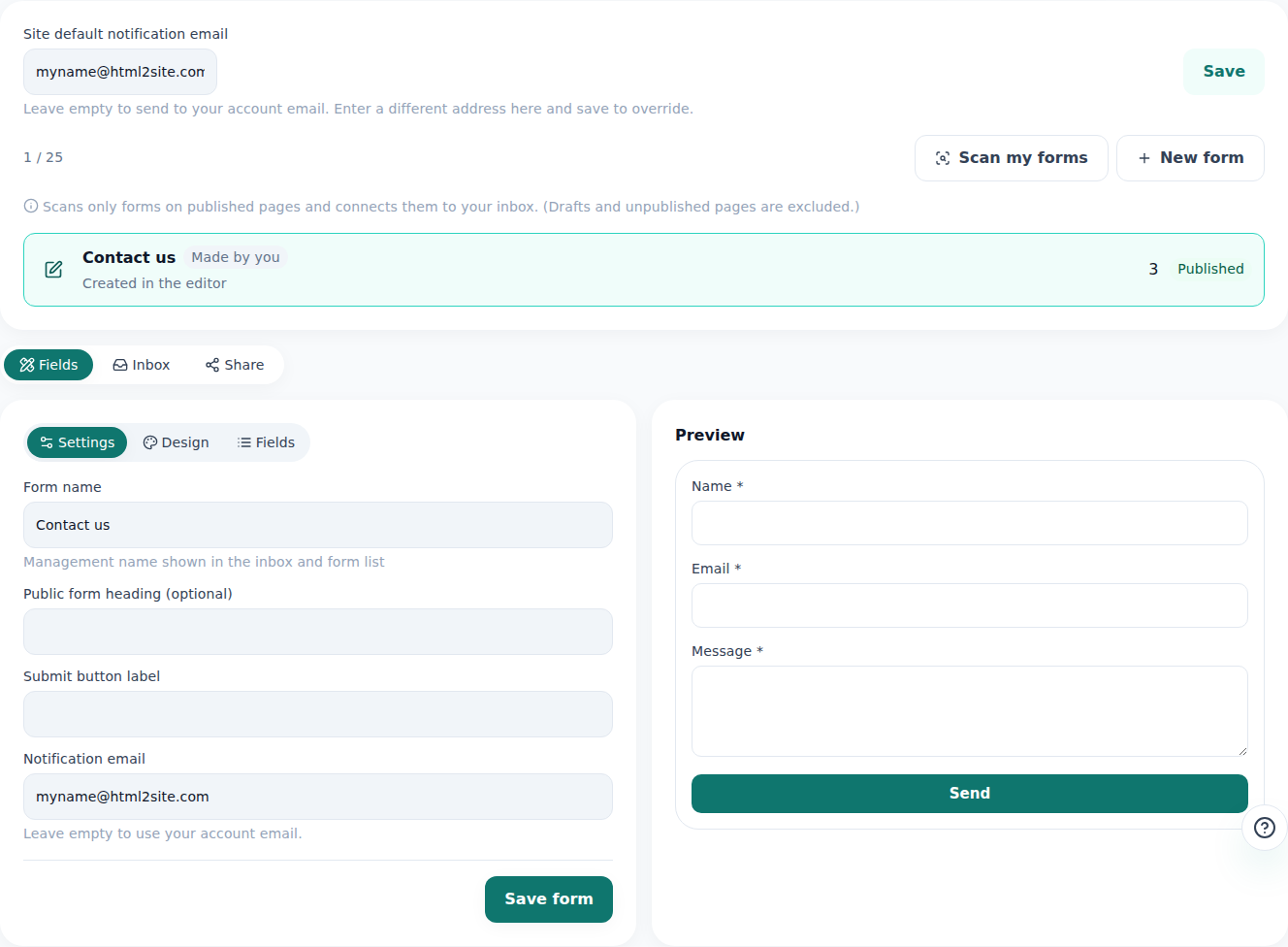
Once a form exists, its submissions show up in the same tab. - 2
Put the form on a page
Once the form is saved, add it to an actual page. The easiest way is to drop an inquiry-form block into the page from the editor and pick the form you just built. If your pasted HTML already had its own form tag, the editor can scan the published page and link it to the inbox automatically. Want it on another site? Copy the inline snippet or iframe code from the Share sub-tab and paste it in.
Inquiries › Share · Momo CoffeePublic link myname.html2site.com/f/bookingPlaced as Inline block (same site)Other options Inline snippet · iframe codeStatus Published - 3
Check everything from the unified inbox
Running more than one site? Instead of switching between editors, open /inquiries — the unified inbox lists inquiries from every site in one place. New ones show up under New, and once you're done with them you can move them to Archived to keep the list tidy. Each row shows which site and which form it came from, and clicking it opens the full message along with any attachments.
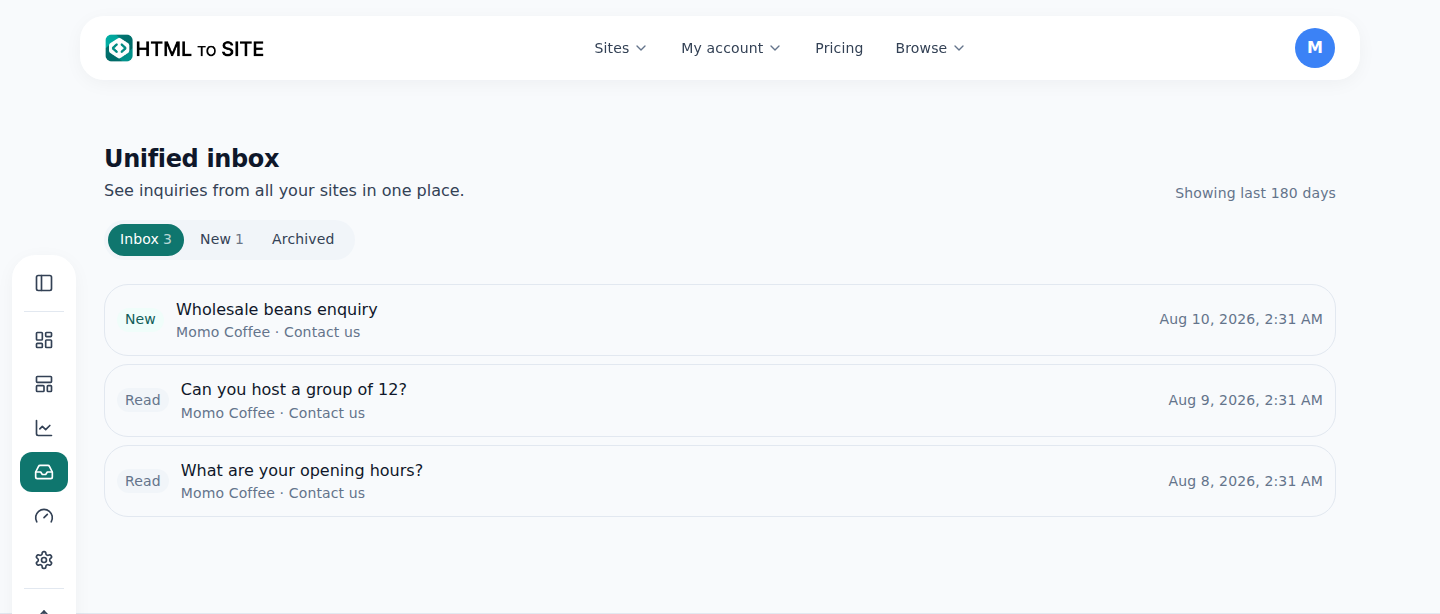
However many sites you run, the messages land in this one list. - 4
The visibility window is plan-based, not a retention limit
The inbox has a visibility window — the free plan shows roughly the last 7 days, and higher plans let you look back further. What that window controls is only what's shown on screen, not what's kept in storage. Inquiries outside the window aren't deleted; they're just locked from view, and upgrading unlocks them immediately, no waiting involved. A locked banner in the inbox links straight to the upgrade page.
Inbox · Visibility windowFree plan Last 7 daysHigher plans See further back in timeOutside the window Locked · data isn't deletedUpgrade Unlocks instantly
Frequently asked questions
How many inquiry forms can I have per site?
The free plan starts at one form per site, and higher plans let you build more.
How is spam kept out?
Several automatic layers — a honeypot field, a signed nonce, per-IP rate limiting — are already on. There's nothing you need to configure yourself.
Does the content disappear once the visibility window passes?
No. Nothing is deleted — it just stops showing up in the inbox once that window passes. The data itself stays put, and upgrading brings it back into view.
Can visitors attach files?
Yes. Uploads are stored privately and only downloadable from the inbox.
Do I get notified when a new inquiry comes in?
Yes, you get an email notification.
Read next
- How to check who's visiting your site How to read visitor analytics in the editor's Analytics tab — what each plan tier shows (English)
- Add a popup — announce news and events to visitors How to show an announcement or event popup to visitors from the editor's Popup tab — content, design, and display rules (English)
- Get your site found — by search engines and AI answers alike How to get a published site found by search engines and AI answers (AEO) — from Branding settings to structured data (English)
- Account settings: what you can change here, and what you can't What you can actually change on /settings and /profile, and what only lives in the SSO account (English)
Trying it is faster than reading about it — paste your HTML now.