
You already have an HTML file. Here's how to put it online.
Last updated: 2026-08-10
Short version — open your HTML file, copy the whole thing, paste it into the box on htmltosite.com, and press “Get my address”. Your site is live on a real URL in about 60 seconds. No server, no install, no credit card.
At a glance
- Time needed
- About 1 min
- Plan required
- Free plan
- Coding knowledge
- None
- Where to do it
- Paste box on the home page
Step by step
- 1
Open the file and copy everything
Open the .html file in any editor — Notepad, VS Code, whatever you have — select all, and copy (Ctrl/Cmd+A, then Ctrl/Cmd+C). If it's a single file with CSS and JavaScript already inline via style/script tags, the next step is a one-shot paste. If it's split across several files (images, a separate CSS file), start with the main HTML file first.
index.html Copy<!doctype html><html lang="en"> …</html> - 2
Paste it into HTMLtoSITE
Drop the code into the box on the homepage and the page renders next to it instantly — the real thing, not a thumbnail. No sign-up needed yet; check it with your own eyes first. Scripts written into the page pause in the preview only and run normally once published.
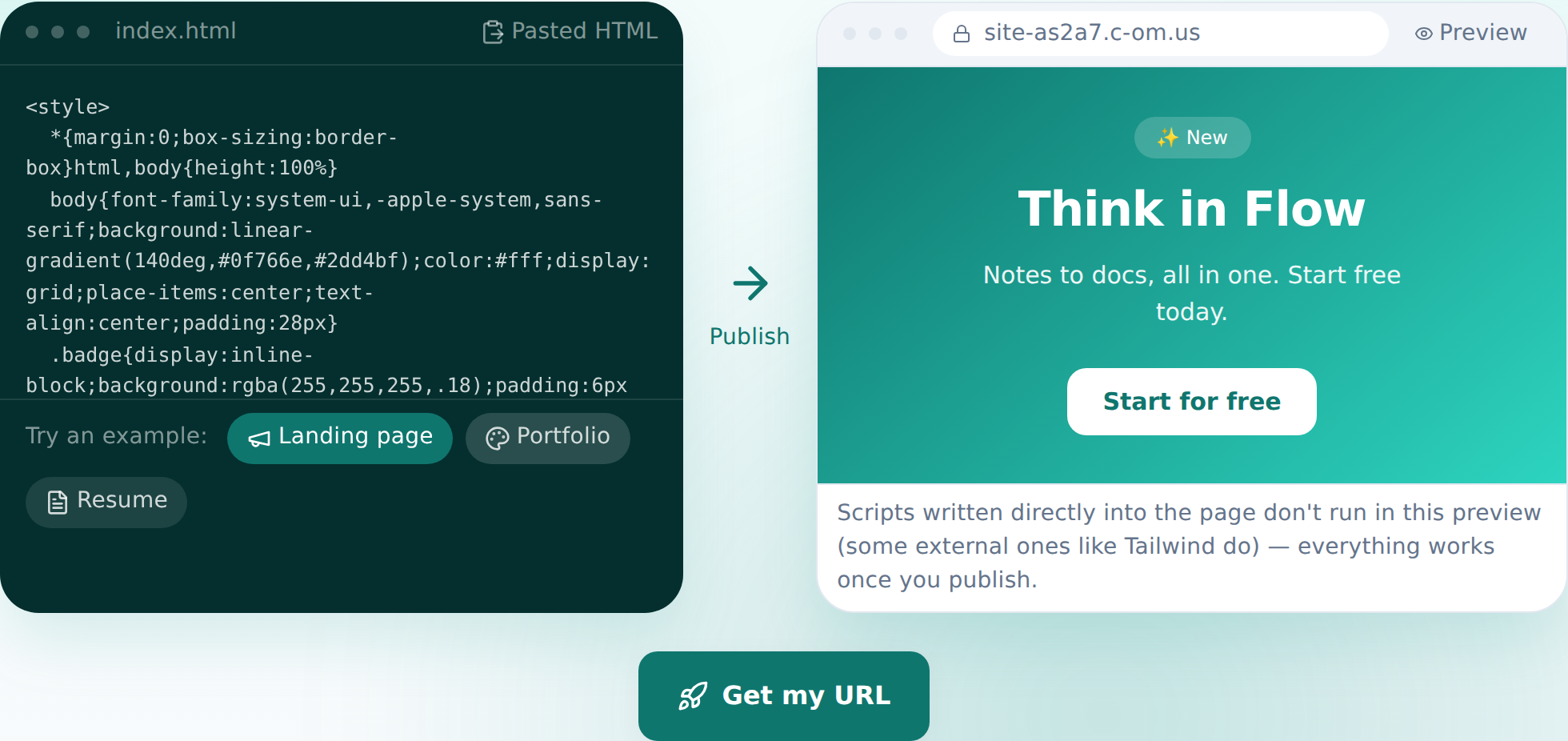
Paste, and the preview appears — this is the actual screen. - 3
Press “Get my address” and pick a name
Happy with the preview? Press the button, sign in once (your pasted code survives the round-trip), choose a name, and publish. Your site is on the internet from that moment. The free plan covers 2 sites and never asks for a card. Got more than one file? Upload the rest once you're on Starter.
myname.html2site.com LivePublishing gives you an address like this instantly. Own a domain? Connect it on Starter and HTTPS is automatic.
- 4
Next time, edit by talking
Open the editor and say what you want changed — the AI finds the right code, shows you the diff first, and one click reverts it if you change your mind. Editing the code by hand still works too.
Edit assistantMake the headline stronger Changed 3 spots. I can revert if you don't like it.
Frequently asked questions
Is it really free?
Yes. Up to 2 sites stay free, and we never ask for a card. Free sites carry a small “Made with HTMLtoSITE” badge; Starter and above remove it.
Does it work for hand-coded files, not just AI-generated ones?
Yes. It doesn't matter where the file came from — hand-written, exported from an old site, whatever. The HTML you paste is published exactly as-is.
Can I have a multi-page site?
The free plan hosts a single HTML file per site. Multiple files — sub-pages, image folders — are available from Starter.
Can I use my own domain?
Yes. From Starter, connect a domain you own and the HTTPS certificate is issued automatically. On the free plan you use your html2site.com address.
What happens to images or CSS referenced in the file?
If they point to an external address (https://…), they show up right after pasting. If the file relies on local files in the same folder, you'll need Starter to upload those alongside it.
Read next
- You asked ChatGPT for a website. Here's how to put it online. Step-by-step guide to publishing ChatGPT-generated HTML on a real address in 60 seconds, no server needed (English)
- Adding multiple pages to your site How to add multiple HTML pages (files) to a site, and what's different between the free and Starter plans (English)
- Managing your sites — folders, rename, delete & recovery How to organize sites into folders, rename them, and undo a deletion within 7 days from the /sites dashboard (English)
- Connect your own domain — two DNS records, then it's automatic How to connect a domain you own to a published site and get HTTPS issued automatically (English)
Trying it is faster than reading about it — paste your HTML now.