
You asked Claude for a website. Here's how to put it online.
Last updated: 2026-08-10
Short version — paste the HTML Claude gave you into the box on htmltosite.com and press “Get my address”. Your site is live on a real URL in about 60 seconds. No server, no install, no credit card.
At a glance
- Time needed
- About 1 min
- Plan required
- Free plan
- Coding knowledge
- None
- Where to do it
- Paste box on the home page
Step by step
- 1
Ask Claude for the page
Describe the page you want and Claude writes the HTML. Add “as a single HTML file” to your prompt so the styling ships in the same file — it makes the next step one paste instead of many. Then hit the copy button on the code block. That's all the preparation there is.
Claude
Make a landing page for my coffee shop as a single HTML file, with a menu, a map section, and a contact button.index.html Copy<section class="hero"> <h1>…</h1></section> - 2
Paste it into HTMLtoSITE
Drop the code into the box on the homepage and the page renders next to it instantly — the real thing, not a thumbnail. No sign-up needed yet; check it with your own eyes first. Scripts written into the page pause in the preview only and run normally once published.
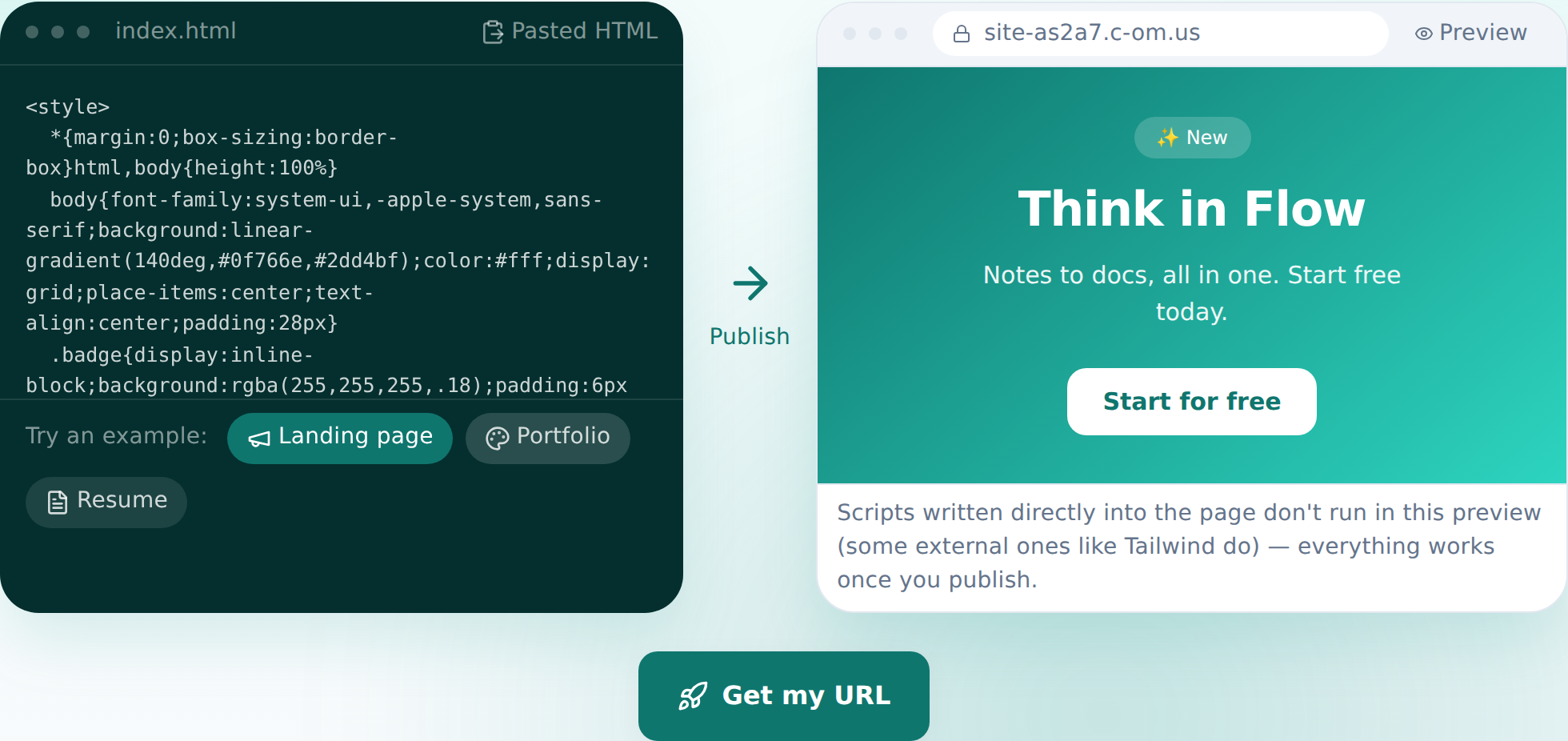
Paste, and the preview appears — this is the actual screen. - 3
Press “Get my address” and pick a name
Happy with the preview? Press the button, sign in once (your pasted code survives the round-trip), choose a name, and publish. Your site is on the internet from that moment. The free plan covers 2 sites and never asks for a card.
myname.html2site.com LivePublishing gives you an address like this instantly. Own a domain? Connect it on Starter and HTTPS is automatic.
- 4
Next time, edit by talking
You don't need to go back to Claude for changes. In the editor, say what you want changed — the AI finds the right code, shows you the diff first, and one click reverts it if you change your mind.
Edit assistantMake the headline stronger Changed 3 spots. I can revert if you don't like it.
Frequently asked questions
Is it really free?
Yes. Up to 2 sites stay free, and we never ask for a card. Free sites carry a small “Made with HTMLtoSITE” badge; Starter and above remove it.
Does Claude's code work as-is?
Yes. The HTML you paste is published exactly as-is. In the pre-publish preview, scripts written into the page don't execute — on the published site everything runs normally.
Can I have a multi-page site?
The free plan hosts a single HTML file per site. Multiple files — sub-pages, image folders — are available from Starter.
Can I use my own domain?
Yes. From Starter, connect a domain you own and the HTTPS certificate is issued automatically. On the free plan you use your html2site.com address.
Can I edit without knowing code?
Yes. Ask in plain language — “change the pricing numbers” — and the AI edits the code. You can click an element to point at it, and every publish leaves a snapshot you can roll back to.
Can I skip copy-paste with Claude Desktop or an MCP client?
Yes. MCP-capable tools like Claude Desktop or Cursor can publish HTML straight from the conversation, no copy-paste needed. See the /mcp page for setup.
Read next
- You asked ChatGPT for a website. Here's how to put it online. Step-by-step guide to publishing ChatGPT-generated HTML on a real address in 60 seconds, no server needed (English)
- You asked Gemini for a website. Here's how to put it online. Step-by-step guide to publishing Gemini-generated HTML on a real address in 60 seconds, no server needed (English)
- The editor's AI edit assistant: describe it, and it edits the code How the editor's AI edit assistant works — describe changes in plain language, click to point, publish to go live, and how revert really works (English)
- Connect your own domain — two DNS records, then it's automatic How to connect a domain you own to a published site and get HTTPS issued automatically (English)
Trying it is faster than reading about it — paste your HTML now.