
Check your billing history and request a refund
Last updated: 2026-08-10
Short version — if it's been less than 24 hours since payment and you haven't used what that payment unlocked, you can check your history on /billing and request a refund directly on YavePay. Once you actually use a paid feature, like publishing a site, the server automatically marks that payment as used and it stops being refundable.
At a glance
- Time needed
- About 3 min
- Plan required
- Free plan
- Coding knowledge
- None
- Where to do it
- Account
Step by step
- 1
Check your payment history on /billing
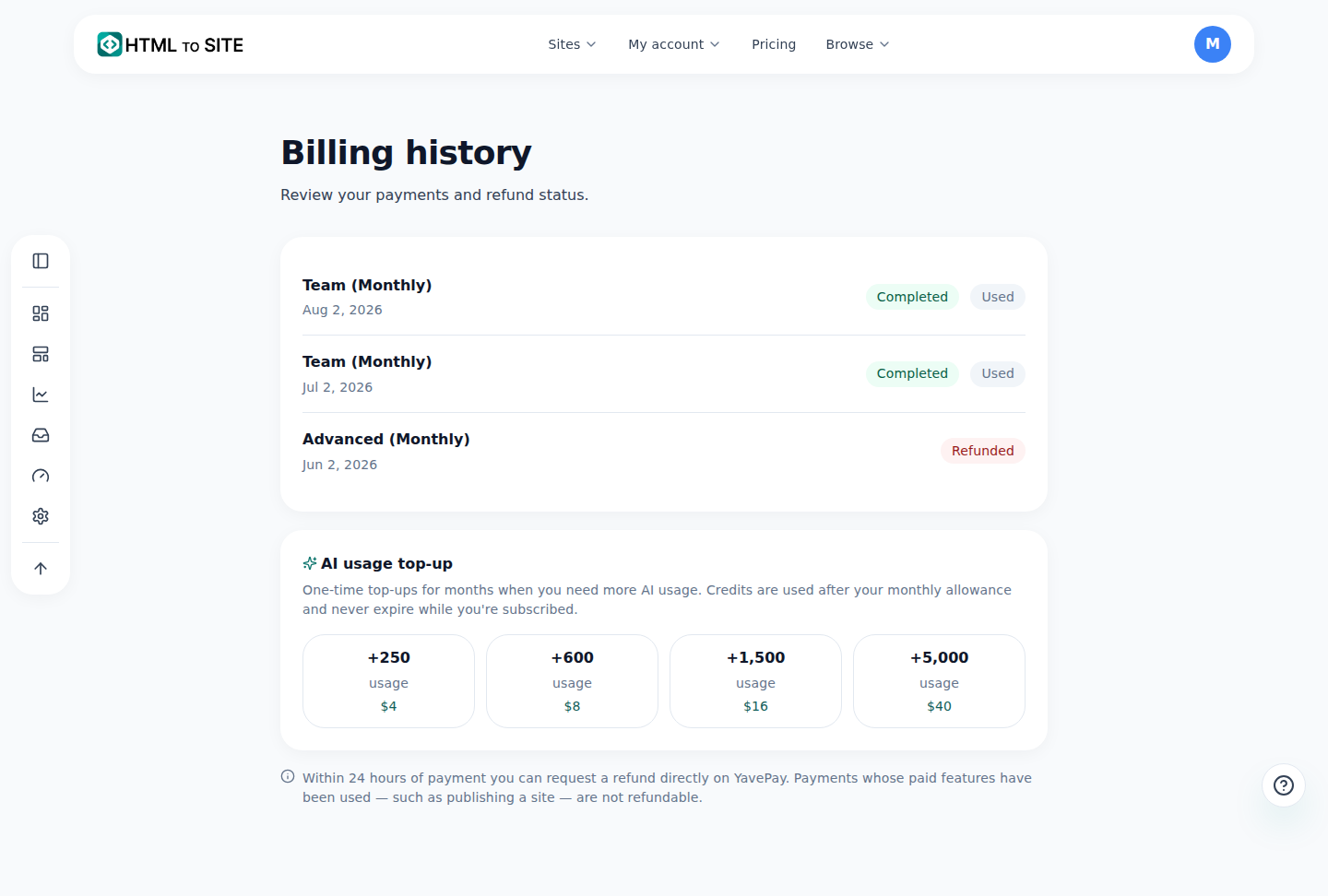
Sign in and open /billing to see every payment you've made. Each row shows the product (plan), the payment date, and a status badge — Completed or Refunded. Here's what a payment for the Momo Coffee site looks like.
Your current plan and next billing date sit at the top. - 2
Refunds are available within 24 hours of payment
If it's been less than 24 hours since payment and you haven't used what it unlocked yet, it's eligible for a self-refund. Say you just paid for the Advanced plan for Momo Coffee but haven't published the site yet — you can request a refund within that 24-hour window. Past 24 hours, this condition no longer applies.
Billing history › Refund noticeRefund window Within 24 hours of paymentCondition Haven't used what that payment unlocked yet - 3
A used payment is automatically excluded from refunds
The moment you actually use a paid feature that payment unlocked — publishing a site, connecting a domain — the server marks it Used, automatically. Publish the Momo Coffee site, for example, and that payment gets a Used badge right away, even if it's still within the 24-hour window. There's no button for marking something used yourself; the server judges actual usage on its own.
Billing historyProduct Advanced (Monthly)Status CompletedUsed Used - 4
Request the refund directly on YavePay, not here
/billing shows what you paid and whether it's still refundable, but the refund request itself happens on YavePay, the payment processor — not on this site. There's no refund button on /billing; it only shows the refund window.
Billing history › Refund noticeHow to request Directly on YavePayRefund window Within 24 hours of payment
Frequently asked questions
Is there a refund window?
Yes — 24 hours after payment.
Where do I request a refund?
Directly on YavePay.
I just paid — why can't I get a refund right away?
If you've already used what that payment unlocked, like publishing, it's automatically marked as used and is no longer refundable.
Can I mark something as “unused” myself?
No — actual usage is judged automatically by the server.
Where do I see my payment history?
On /billing.
Read next
- Changing your plan or canceling — what happens, and when How to upgrade, downgrade, and cancel a subscription from the Plan page — upgrades are immediate, downgrades and cancellations wait for the next billing date (English)
- Check your usage — sites, storage, domains, and AI, all in one place How to check sites, storage, domains, and AI usage — split across all/personal/team scopes — at /usage (English)
- Transfer ownership — hand a site to another person or team How to transfer site ownership to another person or team — verification codes, consent, and the 24-hour cooling-off window (English)
- Create a team and invite members to manage a site together How to create a team, invite members with roles, and understand resource allocation and seat limits (English)
Trying it is faster than reading about it — paste your HTML now.