
Audit log — see who changed what, and when
Last updated: 2026-08-10
Short version — “Audit log” under My Page (/audit) shows your account's activity, newest first, and it's available on every plan, free included. Team-wide audit logs live under a separate tab on the Team page, and that one only opens up from the Team or Ultra plan.
At a glance
- Time needed
- About 2 min
- Plan required
- Free plan
- Coding knowledge
- None
- Where to do it
- Account
Step by step
- 1
Check your account's activity under My Page › Audit log
Open “Audit log” (/audit) under My Page and you'll see your account's activity, newest first — logins, site publishes, billing changes, all of it. Say you run Momo Coffee: publishing that site or changing your password shows up here. You can narrow it down by category (site, security, auth, billing, account, admin, team), and this screen works the same on every plan, free included — it's never gated.
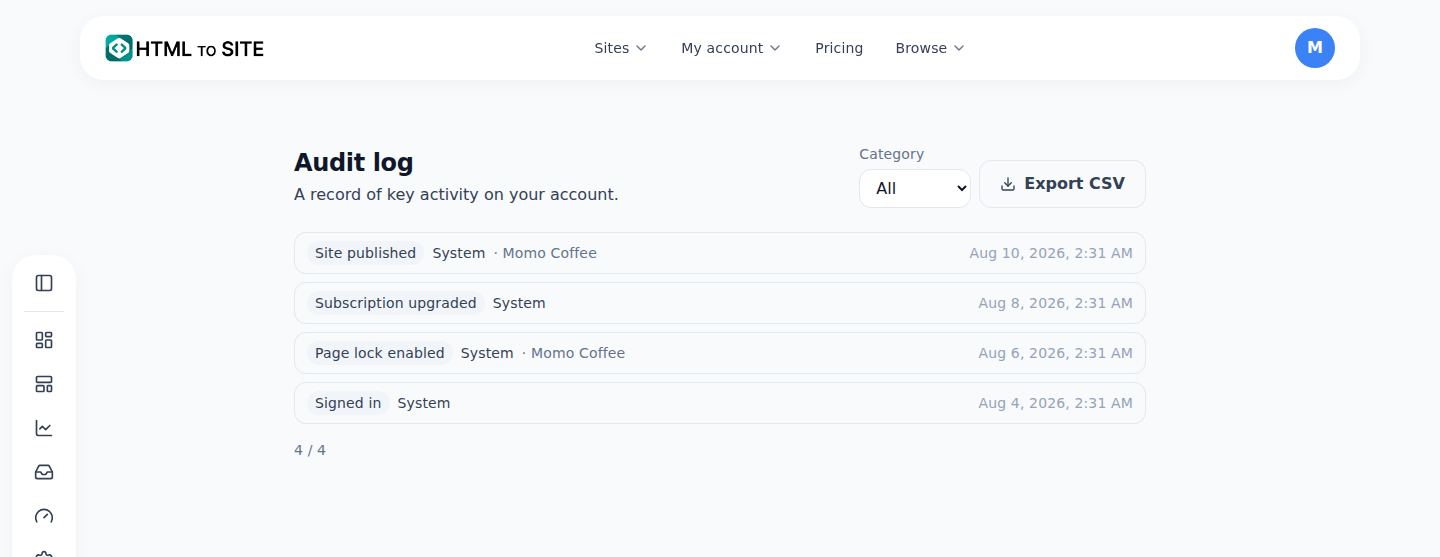
Publishes, domain connections, sign-ins and plan changes each leave a row. - 2
Export it as CSV when you need to
Click “Export CSV” above the list and it downloads audit-log.csv with whatever category filter you currently have set. Each row carries timestamp, action, actor, target type, target, and detail. Unlike the labels on screen, the action column keeps the raw code (like site.publish) — built for scripts to parse, not for reading.
My Page › Audit log · Export CSVExport button Export CSVFile name audit-log.csvColumns timestamp · action code · actor · target type · target · detailFilter applied Whatever category is selected - 3
Team-wide audit logs need the Team or Ultra plan
/audit only covers your personal account. Move Momo Coffee into a team and run it with other members, and there's a separate “Audit log” tab on the Team page for team-wide activity — member invites, role changes, that sort of thing. Only admins and above can open that tab, and it only shows up when the team's owning account is on the Team or Ultra plan — teams on Free, Starter, Advanced, or Expert never see the tab at all. That's a completely separate restriction from the personal log, which stays free on every plan.
Team › Audit logPlan restriction Team and Ultra onlyWho can view Admin and aboveEntry Member invited · Momo CoffeeFree / Starter / Advanced / Expert Tab doesn't appear - 4
Entries only ever accumulate, and names stay exactly as recorded
There's no way to edit or delete an entry — the audit log is append-only, so even a mistaken entry stays (deleting the whole account is the only thing that clears it). The actor and target names stored in each entry are a snapshot from that exact moment. Rename Momo Coffee to Momo Coffee 2 later, or delete the site entirely, and the old entries still say “Momo Coffee” — that's the point, preserving what things looked like at the time.
My Page › Audit log · Entry detailEdit / delete Not possible — append-onlyRecorded name Momo Coffee (as of that entry)Current site name Momo Coffee 2 (renamed since)Shown as Still “Momo Coffee” in the log
Frequently asked questions
Is the personal audit log paid too?
No — the personal audit log (/audit) is available on every plan, free included.
Which plan unlocks the team audit log?
Team or Ultra. Below that, the audit log tab doesn't even appear on the Team page.
Can I export entries as CSV?
Yes — click “Export CSV” on the personal audit log screen, and it exports with your current category filter applied.
Can I edit or delete an entry?
No. The log is append-only — there's no edit or delete for entries.
If I rename a member later, does the old log update too?
No. Each entry keeps a snapshot of the name at the time it was recorded, so renaming or deleting the site or member later doesn't change what's already in the log.
Read next
- Create a team and invite members to manage a site together How to create a team, invite members with roles, and understand resource allocation and seat limits (English)
- Account settings: what you can change here, and what you can't What you can actually change on /settings and /profile, and what only lives in the SSO account (English)
- Restoring an old version — publishes, backups, and rollback How to restore an earlier published version from the editor's Versions tab, and undo a restore if needed (English)
- Transfer ownership — hand a site to another person or team How to transfer site ownership to another person or team — verification codes, consent, and the 24-hour cooling-off window (English)
Trying it is faster than reading about it — paste your HTML now.