
How to check who's visiting your site
Last updated: 2026-08-10
Short version — open the Analytics tab in the editor to see who's viewing your site. Free shows total pageviews only, Starter adds paths, referrers, and trends, Advanced and above adds country, device, and UTM data, and you can look back up to 90 days.
At a glance
- Time needed
- About 2 min
- Plan required
- Free plan
- Coding knowledge
- None
- Where to do it
- Account
Step by step
- 1
Check total pageviews — free from day one
Open Analytics in the editor's side menu to see who's viewing Momo Coffee. Even the free plan shows total pageviews for the period you pick, right away. One thing worth knowing up front: that number is pageviews — how many times a page loaded — not a deduplicated unique-visitor count.
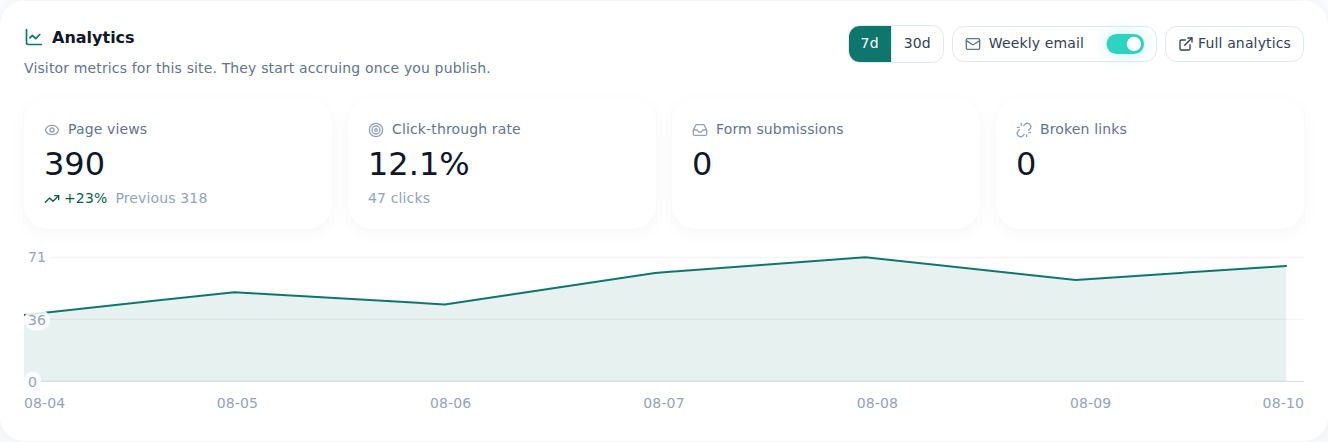
This is what the free plan actually shows. That's the whole screen. - 2
See paths and referrers once you're on Starter
Upgrade to Starter and the same Analytics tab gains new sections: which pages get the most views (top paths), where visitors came from (referrers), and how pageviews trend over your chosen period. What was a single number on Free turns into tables and a trend chart.
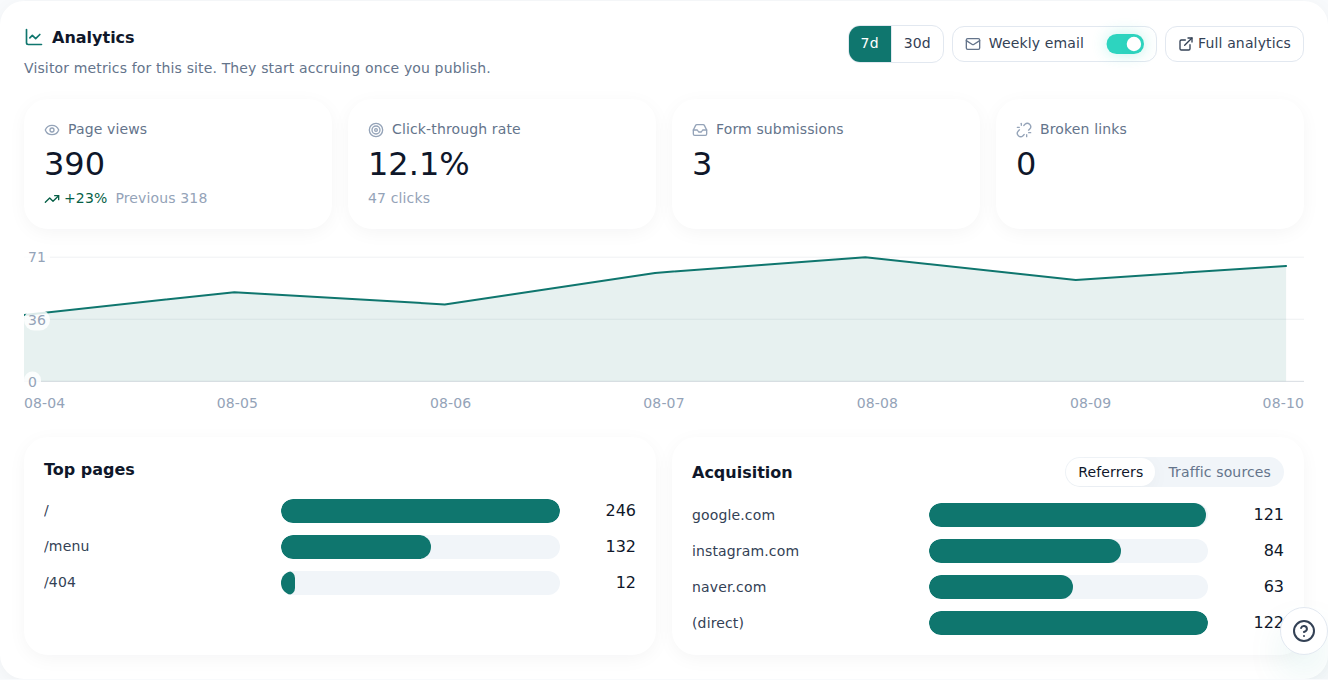
From Starter the screen grows tables: which pages get read, and where people came from. - 3
Break down country, device, and UTM on Advanced
From Advanced up, you also get where visitors are (country, city), what they're browsing with (device, browser, OS), which UTM campaign brought them in, and how they moved between pages (visit flow). Handy once you're running ads or comparing mobile vs. desktop traffic.
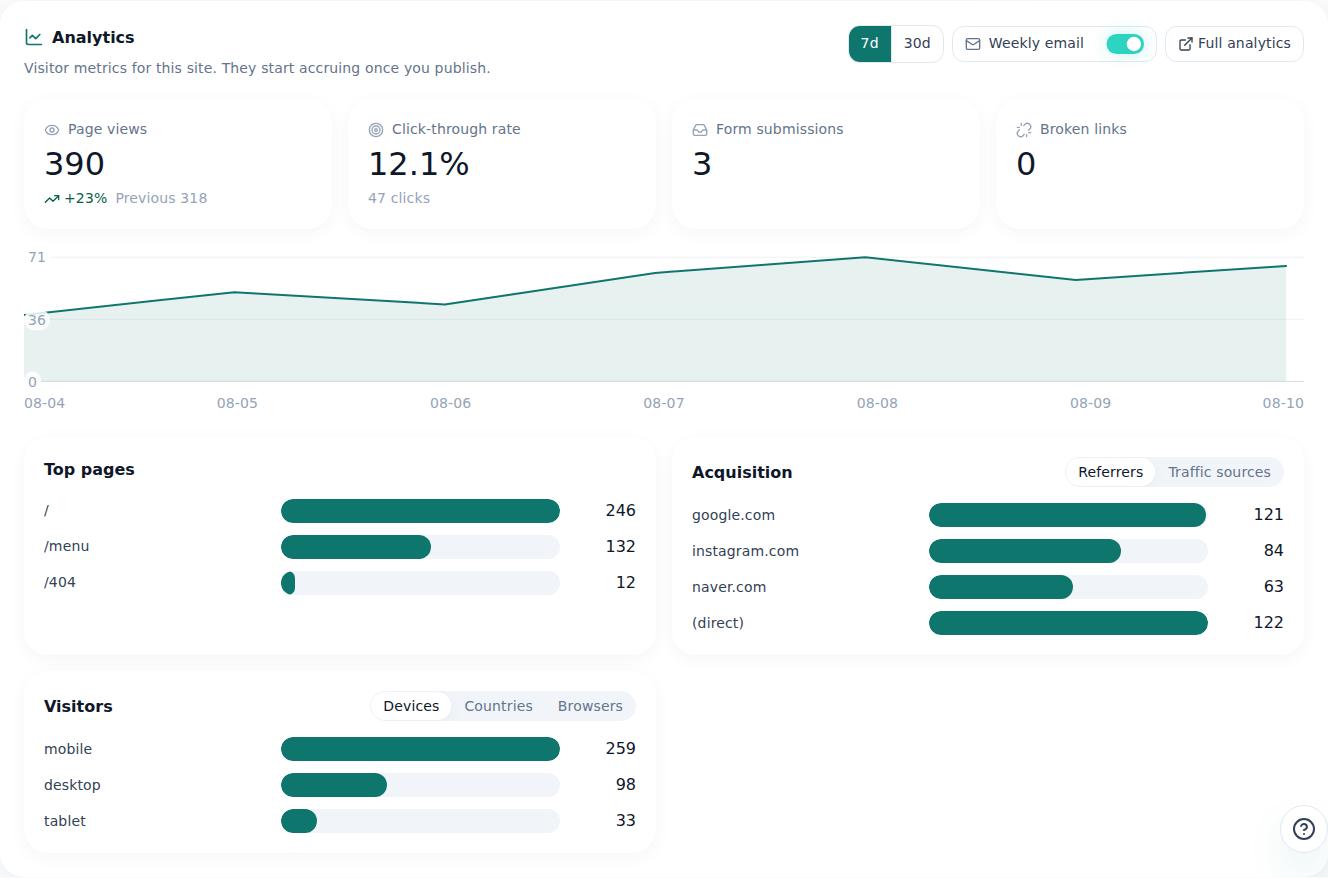
Advanced splits visitors by country and device. - 4
Look back up to 90 days, or roll up every site at /sites
No matter the plan, Analytics only looks back up to 90 days — older data isn't shown on screen. Running more than one site? Head to /sites to see pageviews across your whole account in one place, still counted the same way — as pageviews, not unique visitors.
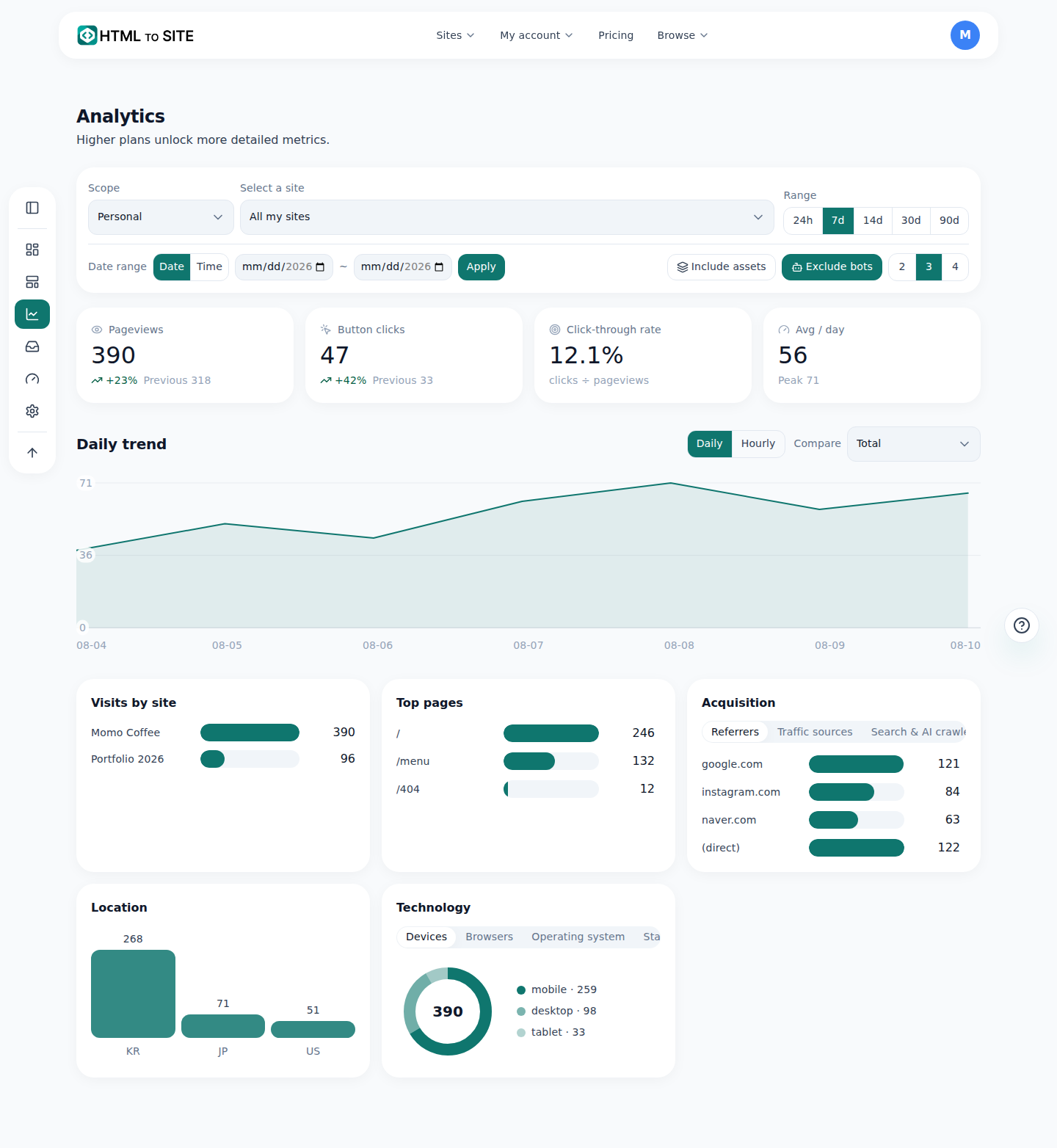
Running several sites? The account-wide screen totals them for you.
Frequently asked questions
Does the free plan show any visitor analytics?
Yes — basic stats like total pageviews are available on the free plan. Deeper breakdowns like paths and countries need a paid plan.
Does it show unique visitors, not just pageviews?
No. The only number counted accurately is pageviews — HTMLtoSITE doesn't report a deduplicated unique-visitor count.
Which plan unlocks country and device breakdowns?
Advanced and up. Starter gets you paths, referrers, and trends, but country, device, browser, OS, and UTM data start at Advanced.
Can I look back further than 90 days?
No, the lookback window is capped at 90 days. Anything older than that isn't shown in Analytics.
Can I see analytics for all my sites at once?
Yes — go to /sites to see pageviews rolled up across your whole account, instead of opening each site one by one.
Read next
- Get your site found — by search engines and AI answers alike How to get a published site found by search engines and AI answers (AEO) — from Branding settings to structured data (English)
- One form for visitor inquiries, one inbox for every site How to build a visitor inquiry form and check every site's inquiries from one unified inbox (English)
- Inject code into head and body How to paste scripts into head/body via the editor's code injection tab — Advanced plan and up, original file untouched (English)
- Check your usage — sites, storage, domains, and AI, all in one place How to check sites, storage, domains, and AI usage — split across all/personal/team scopes — at /usage (English)
Trying it is faster than reading about it — paste your HTML now.