
The editor's AI edit assistant: describe it, and it edits the code
Last updated: 2026-08-10
Short version — open the Editor tab's AI panel, describe the change you want, and the AI edits the code and updates your preview. Nothing reaches visitors until you press Publish.
At a glance
- Time needed
- About 2 min
- Plan required
- Free plan
- Coding knowledge
- None
- Where to do it
- Editor
Step by step
- 1
Just tell it what you want changed
Open the “Editor” tab and look at the AI panel on the right. Describe the change in plain language, the way you'd tell a person — “Make the booking button stand out more.” The AI snapshots the current state, edits the code, and replies with a short summary of what changed.
Edit assistantMake the booking button stand out more Changed the button color and copy in 2 places. - 2
Or just click to point at it
Click any element on the canvas to select it. Ask the AI while it's selected, and it targets that element automatically — no need to describe where it is in words. This works even if you don't know any code.
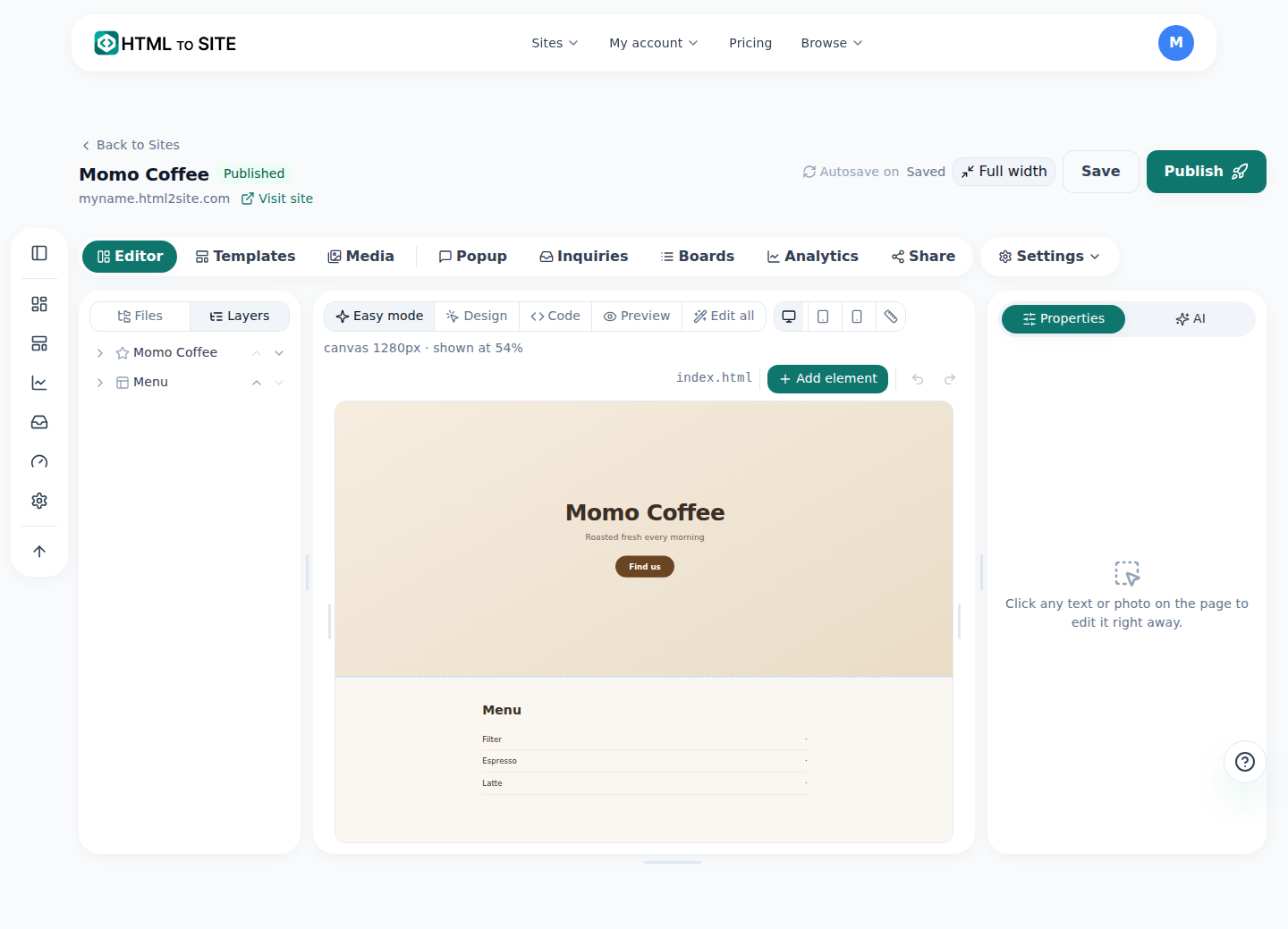
Ask in the AI panel on the right and this canvas is what changes. - 3
Publish it before visitors see it
AI edits land in the preview (draft) only — the live site your visitors see doesn't change yet. Press Publish, and from that moment visitors see the update too. Make several edits first and publish once, if that's easier.
Editor statePreview (draft) Button color & copy updatedLive site Still the old versionPublish Required to update visitors - 4
Know this before you hit revert
Reverting an AI edit doesn't undo just that one request. It restores the snapshot from right before that edit, and everything that happened after it disappears too. Make three edits in a row and revert the second one, and the second and third are both gone — you're back to right after the first.
Edit assistantRevert that last change Reverted everything after that point.
Frequently asked questions
Does reverting only undo that one request?
No. Everything that happened after that point gets undone too — including any edits you made afterward.
Do AI edits show up for visitors right away?
No, you need to press Publish for changes to reach the live site.
Can I use AI edits on the free plan?
Yes, up to 50 edits a month for free.
What happens when I run out?
You can add a top-up pack, and it never expires while you're subscribed.
Do I need to know code at all?
No — describe what you want in a sentence, or click an element on the screen to point at it.
Read next
- Restoring an old version — publishes, backups, and rollback How to restore an earlier published version from the editor's Versions tab, and undo a restore if needed (English)
- You asked ChatGPT for a website. Here's how to put it online. Step-by-step guide to publishing ChatGPT-generated HTML on a real address in 60 seconds, no server needed (English)
- Check your usage — sites, storage, domains, and AI, all in one place How to check sites, storage, domains, and AI usage — split across all/personal/team scopes — at /usage (English)
- Adding multiple pages to your site How to add multiple HTML pages (files) to a site, and what's different between the free and Starter plans (English)
Trying it is faster than reading about it — paste your HTML now.