
Account settings: what you can change here, and what you can't
Last updated: 2026-08-10
Short version — name, password, two-factor auth, and language are all just displayed from the SSO account you sign in with. What you can actually change on /settings and /profile is per-device push notifications and API access tokens.
At a glance
- Time needed
- About 3 min
- Plan required
- Free plan
- Coding knowledge
- None
- Where to do it
- Account
Step by step
- 1
Name and password live in your SSO account — shown here, not editable
Open /settings or /profile and you'll see your name, email, and language, but there's no field to edit them directly. Running Momo Coffee doesn't change that — your name and password are managed in the SSO account you sign in with, not here. The Security card says the same thing: name, password, and 2FA belong to that account.
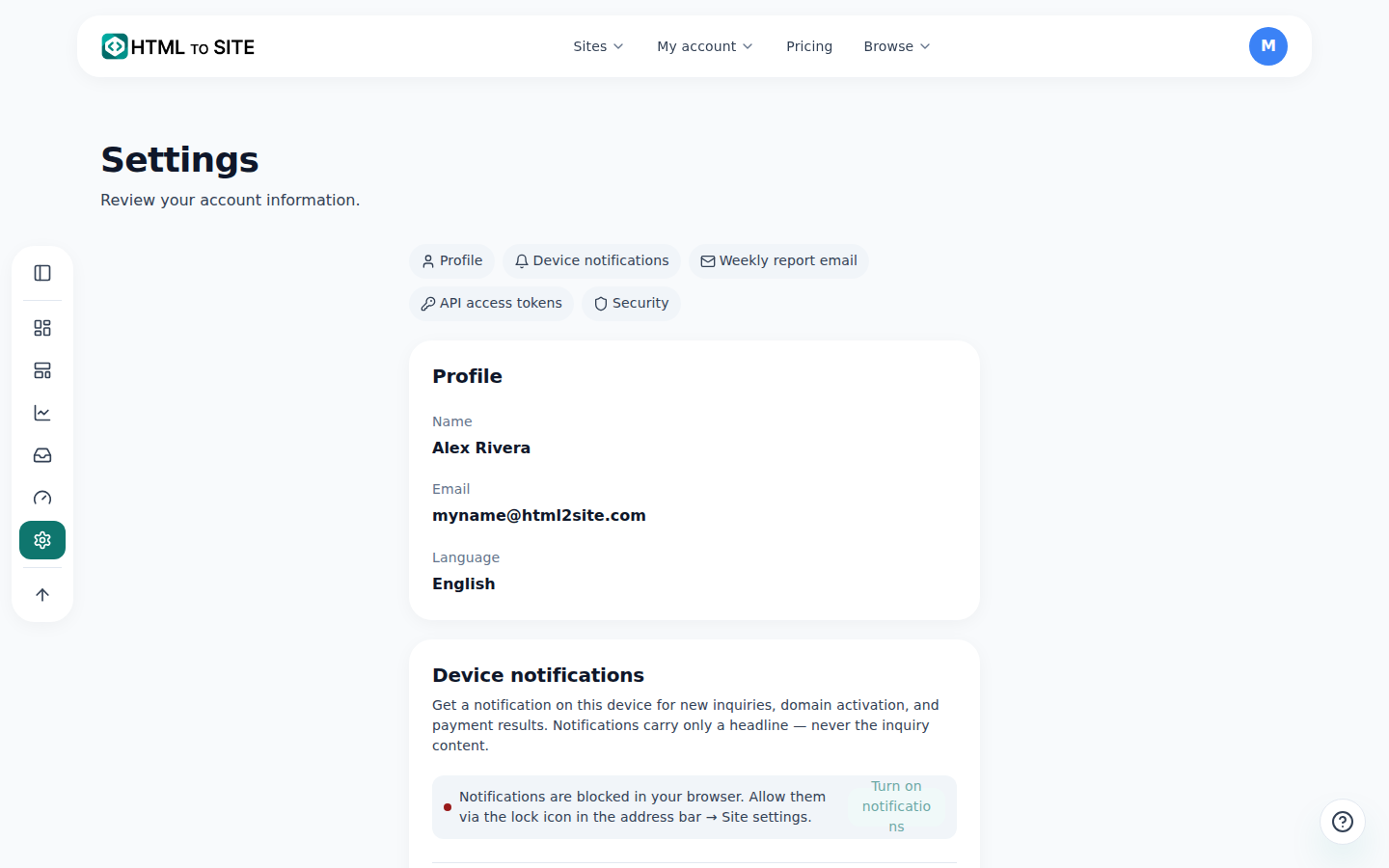
Anything that applies to the account rather than one site lives here. - 2
Language is another SSO value, shown here only
Settings has a language field too, but like name and password, it isn't a picker you can change here. It just displays whatever language is set on the SSO account you signed in with. Want Momo Coffee's dashboard in English instead? That's a change you make on the login account, not here.
Settings › LanguageLanguage Korean · display onlySource of the value SSO account (set at sign-in)Editable here No - 3
Turn device notifications on or off, per device
The Device notifications card lets you turn push alerts on or off for the device you're using — new inquiries, domain connection finished, and payment results. Notifications only carry a title, never the inquiry's actual content. Signed in on more than one device? Each one shows up in the device list, so you can turn any of them off remotely, even one you've lost.
Settings › Device notificationsNotification types New inquiry · Domain connected · Payment resultThis device OnRegistered devices 2 - 4
Issue an API access token (for MCP tools)
Connecting an MCP-capable tool like Claude or Cursor to your account needs an API access token — say, when Momo Coffee's editor wants Claude to build and publish a menu page directly. Name the token and request a code, and a 6-digit code lands in your email; enter it and create the token, and the token's value is shown exactly once, right there — close the window and it's gone for good, so copy it immediately. Tokens can't touch anything sensitive like billing or deleting a site (that's web-only), and revoking a token disconnects that tool right away.
Settings › API access tokensToken name Claude DesktopVerification code 6 digits, sent by emailAfter issuing Shown once · gone once you close the windowSensitive actions Billing/deletion blocked (web only)
Frequently asked questions
Can I change my password here?
No — that happens in the SSO account you sign in with. This page only displays it.
Where do I set up two-factor authentication?
In that same SSO account screen you go through when signing in.
Why would I need an API token?
To connect an MCP-capable tool like Claude or Cursor.
Can I turn notifications off per device?
Yes, each device has its own on/off switch.
Can I change my language here?
No — it's only displayed here. It follows whatever's set on the SSO account you sign in with.
Read next
- Check your billing history and request a refund How to check payment history on /billing and request a refund on YavePay within 24 hours of an unused payment (English)
- Check your usage — sites, storage, domains, and AI, all in one place How to check sites, storage, domains, and AI usage — split across all/personal/team scopes — at /usage (English)
- Audit log — see who changed what, and when How to check your account's audit log at /audit and export it as CSV — personal logs are free on every plan, team logs need Team or Ultra (English)
- Create a team and invite members to manage a site together How to create a team, invite members with roles, and understand resource allocation and seat limits (English)
Trying it is faster than reading about it — paste your HTML now.